Python Interface
The zndraw package provides a Python interface to interact with the visualisation tool.
To use this API, you need to have a running instance of the ZnDraw web server.
Getting Started
Start a local webserver using the command line interface:
$ zndraw file.xyz --port 1234
Then connect from Python:
from zndraw import ZnDraw

vis = ZnDraw(url="http://localhost:1234", room="123e4567-e89b-12d3-a456-426614174000/my-room")
Note
Each visualisation is associated with a room address of the form
<owner_uuid>/<name> (visible in the URL). Use this address to interact
via Python API or share with others. Single-segment names are no longer supported.
Click the connection info button in the UI to see how to connect from Python:


Authentication
ZnDraw supports optional user authentication:
vis = ZnDraw(
    url="http://localhost:1234",
    room="123e4567-e89b-12d3-a456-426614174000/my-room",
    user="my-username",
    password="my-password"
)
If no user is provided, the server will assign a guest username.
Working with Frames
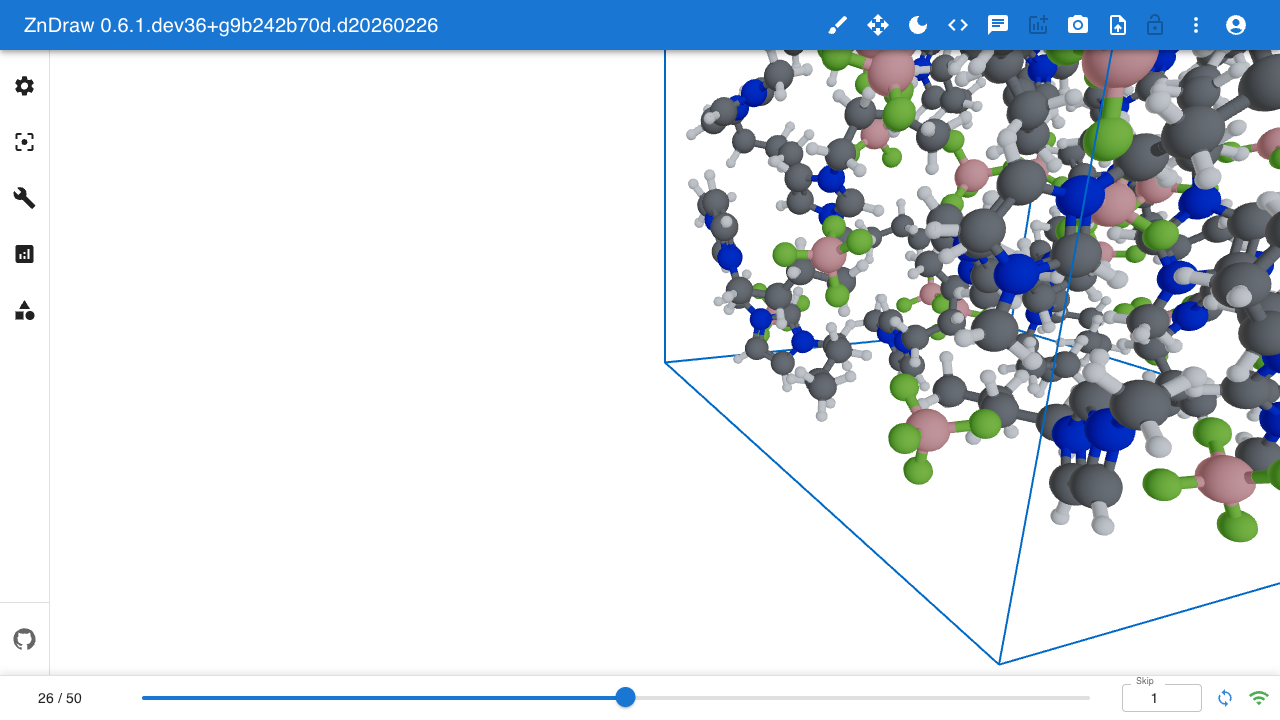
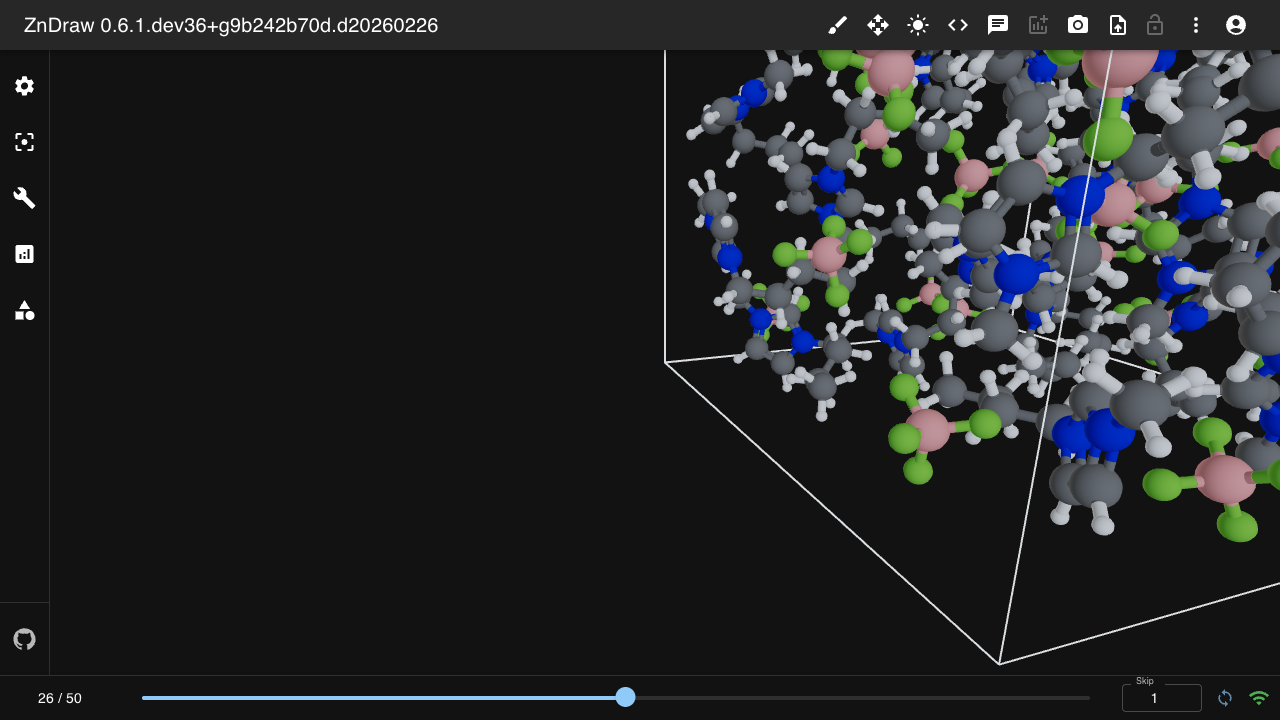
The vis object behaves like a Python list of ase.Atoms objects.
Modifying the list updates the visualisation in real-time.
import ase.io as aio

# Load and display frames
frames = aio.read("file.xyz", index=":")
vis.extend(frames)

# Access frames
atoms = vis[vis.step]  # Current frame
subset = vis[10:20]    # Slice of frames

# Iterate
for atoms in vis:
    print(atoms)

# Navigate to a specific frame
vis.step = 25
Selections
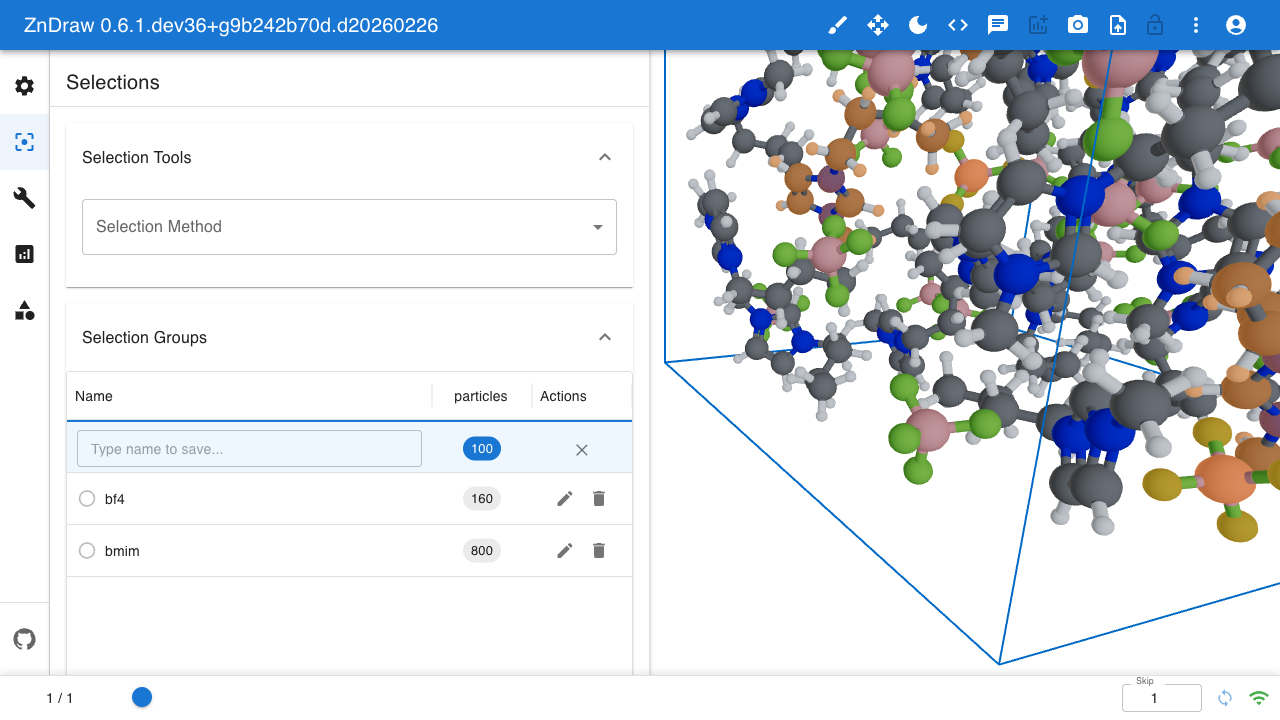
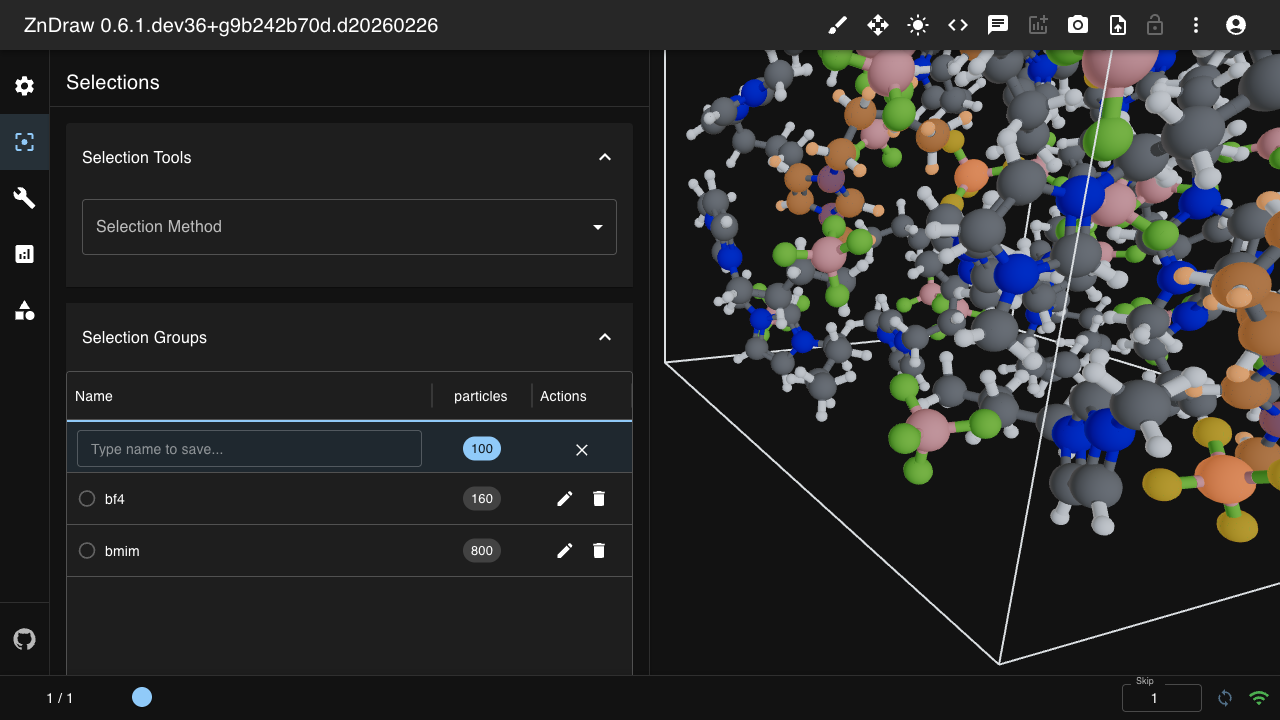
Select atoms by index using vis.selection (shortcut for particles geometry):
# Set selection for particles
vis.selection = [0, 1, 2, 3]

# Get selection
selected = vis.selection

# Clear selection
vis.selection = []
Select by geometry type using vis.selections (dict-like interface):
# Set selection for specific geometry
vis.selections["particles"] = [0, 1, 2, 3]
vis.selections["forces"] = [5, 6, 7]

# Get selection for a geometry
particle_selection = vis.selections["particles"]

# Clear selection for a geometry
del vis.selections["particles"]

# Iterate over geometries with selections
for geometry in vis.selections:
    print(f"{geometry}: {vis.selections[geometry]}")
Use selection groups to save and restore named selections across multiple geometries:
# Create named group (maps geometry names to indices)
vis.selection_groups["backbone"] = {
    "particles": [0, 1, 2],
    "forces": [0, 1, 2]
}

# Create group with only particles
vis.selection_groups["active_site"] = {"particles": [10, 11, 12]}

# Get a group
group = vis.selection_groups["backbone"]
print(group)  # {"particles": [0, 1, 2], "forces": [0, 1, 2]}

# Load a group (apply it to current selections)
vis.load_selection_group("backbone")

# List all groups
for group_name in vis.selection_groups:
    print(f"{group_name}: {vis.selection_groups[group_name]}")

# Delete a group
del vis.selection_groups["backbone"]
Bookmarks
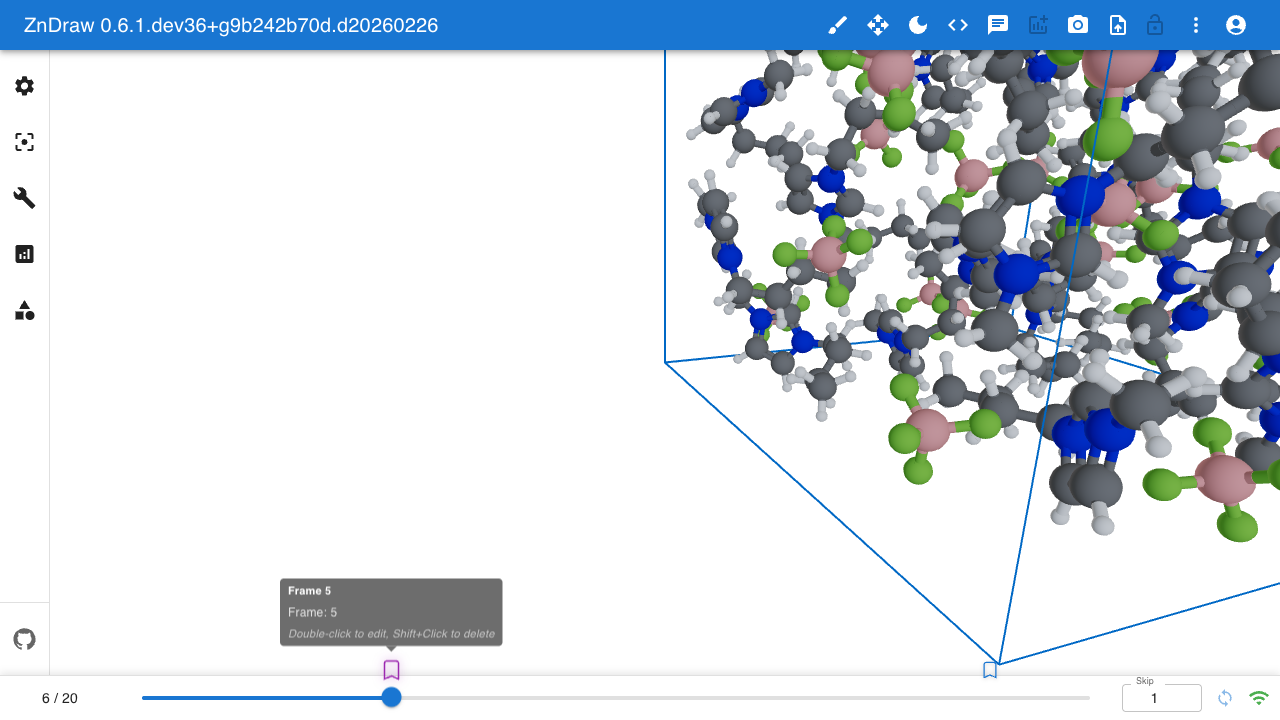
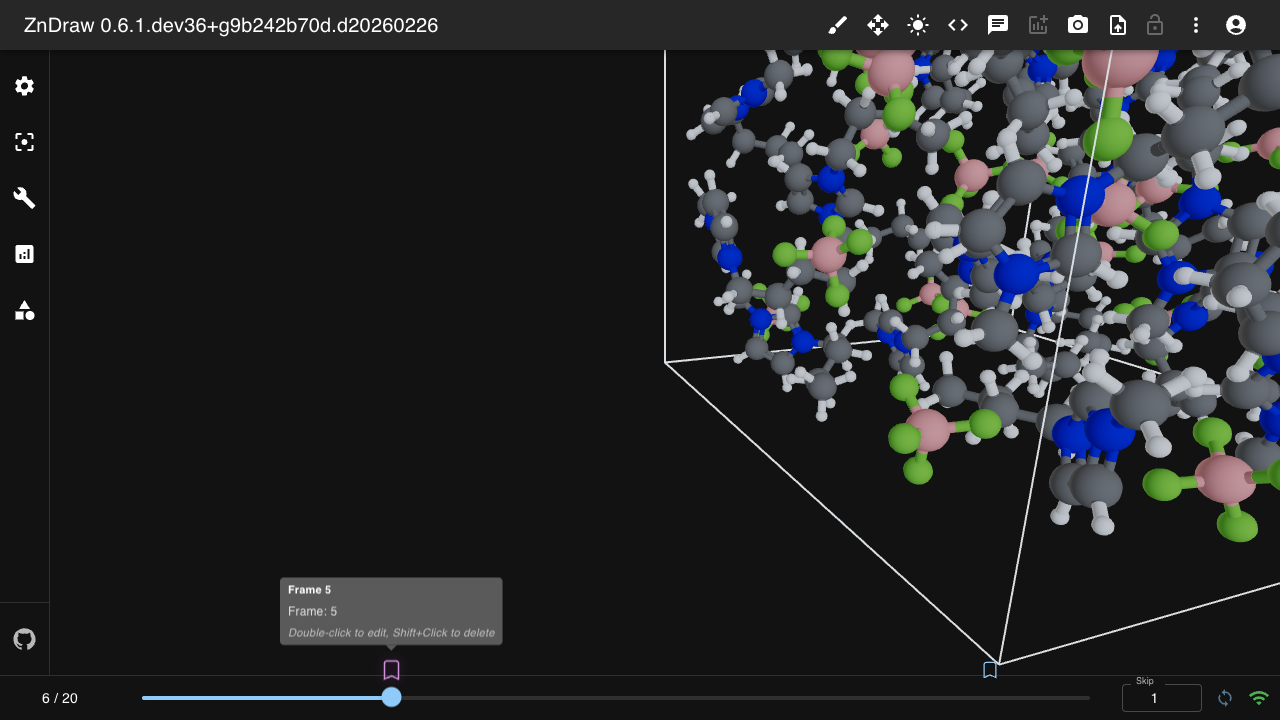
Label important frames with bookmarks:
# Add bookmark to frame 0
vis.bookmarks[0] = "Initial State"

# Add bookmark to frame 50
vis.bookmarks[50] = "Transition"

# List all bookmarks
for frame, label in vis.bookmarks.items():
    print(f"Frame {frame}: {label}")

# Delete bookmark
del vis.bookmarks[0]
Geometries
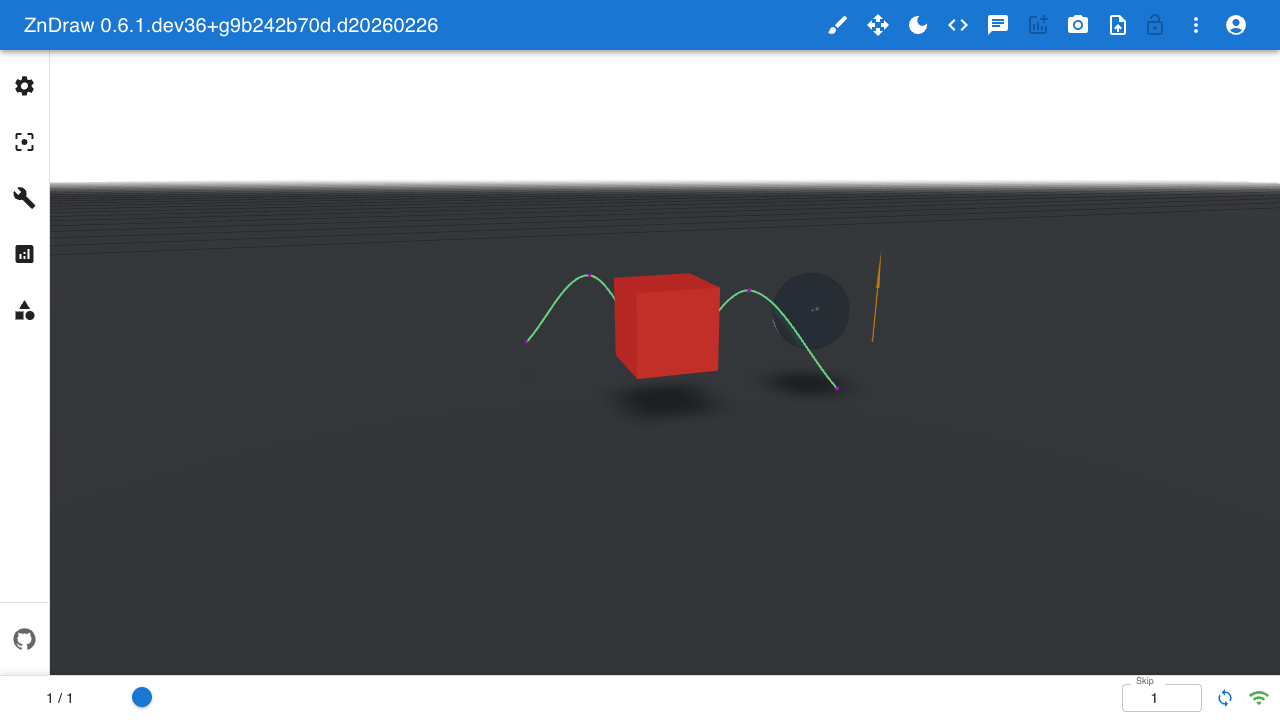
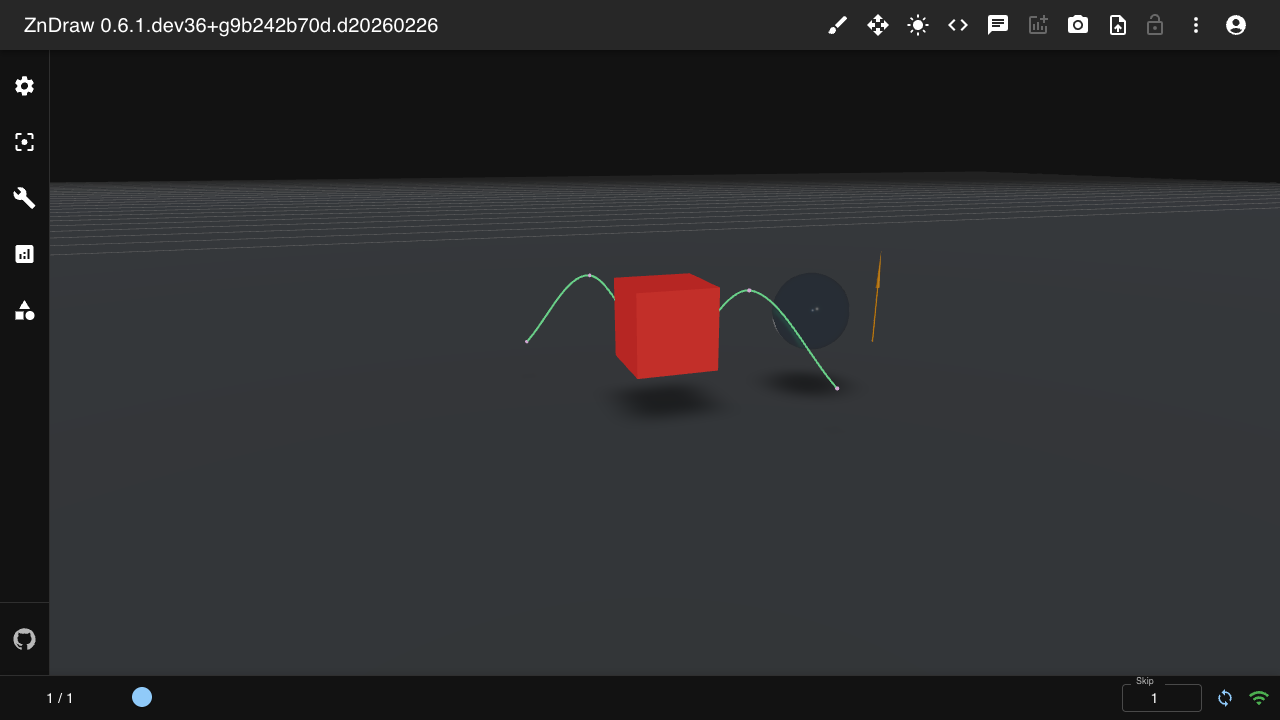
Add 3D geometries to the scene using vis.geometries:
from zndraw.geometries import Box, Sphere, Curve, Arrow, Floor

# Add a floor
vis.geometries["floor"] = Floor(active=True, position=(0, -2.0, 0), color="#808080")

# Add a red box with cartoon material
vis.geometries["box"] = Box(
    position=[(0, 2, 0)],
    size=[(4, 4, 4)],
    color=["#e74c3c"],
    material="MeshToonMaterial"
)

# Add a blue sphere with glass material
vis.geometries["sphere"] = Sphere(
    position=[(8, 2, 0)],
    radius=[2.0],
    color=["#3498db"],
    material="MeshPhysicalMaterial_glass"
)

# Add a green curve
vis.geometries["curve"] = Curve(
    position=[(-6, 0, -6), (-3, 4, -3), (0, 0, 0), (3, 4, 3), (6, 0, 6)],
    color="#2ecc71"
)

# Add an orange arrow with shiny material
vis.geometries["arrow"] = Arrow(
    position=[(12, 0, 0)],
    direction=[(0, 5, 0)],
    color=["#f39c12"],
    material="MeshPhysicalMaterial_shiny"
)

# List geometries
print(list(vis.geometries.keys()))

# Delete geometry
del vis.geometries["box"]
Available materials: MeshPhysicalMaterial_matt (default), MeshPhysicalMaterial_glass,
MeshPhysicalMaterial_shiny, MeshToonMaterial, MeshStandardMaterial_metallic, and more.
Curve Customization
Curves use CatmullRom spline interpolation between control points. Customize the curve appearance with additional parameters:
from zndraw.geometries import Curve, CurveMarker

vis.geometries["curve"] = Curve(
    position=[(-6, 0, -6), (-3, 4, -3), (0, 0, 0), (3, 4, 3), (6, 0, 6)],
    color="#2ecc71",
    divisions=100,  # Interpolation smoothness (1-200, default 50)
    thickness=3.0,  # Line thickness (0.5-10, default 2.0)
    marker=CurveMarker(
        enabled=True,    # Show control point markers
        size=0.15,       # Marker size (0.01-1.0)
        color="default", # Use curve color, or specify hex
        opacity=1.0,     # Marker opacity (0-1)
    ),
    virtual_marker=CurveMarker(
        enabled=True,    # Show markers between control points
        size=0.1,        # Smaller than main markers
        opacity=0.5,     # Semi-transparent
    ),
)
Marker Settings:
marker: Settings for control point markers (the main editable points)virtual_marker: Settings for markers between control points (shown in editing mode, click to insert new control point)
Both marker types support:
enabled: Show or hide markerssize: Marker size (0.01 to 1.0)color: Hex color or"default"to use curve coloropacity: Transparency (0 = invisible, 1 = opaque)selecting: Appearance when selected (color, opacity)hovering: Appearance when hovered (color, opacity)
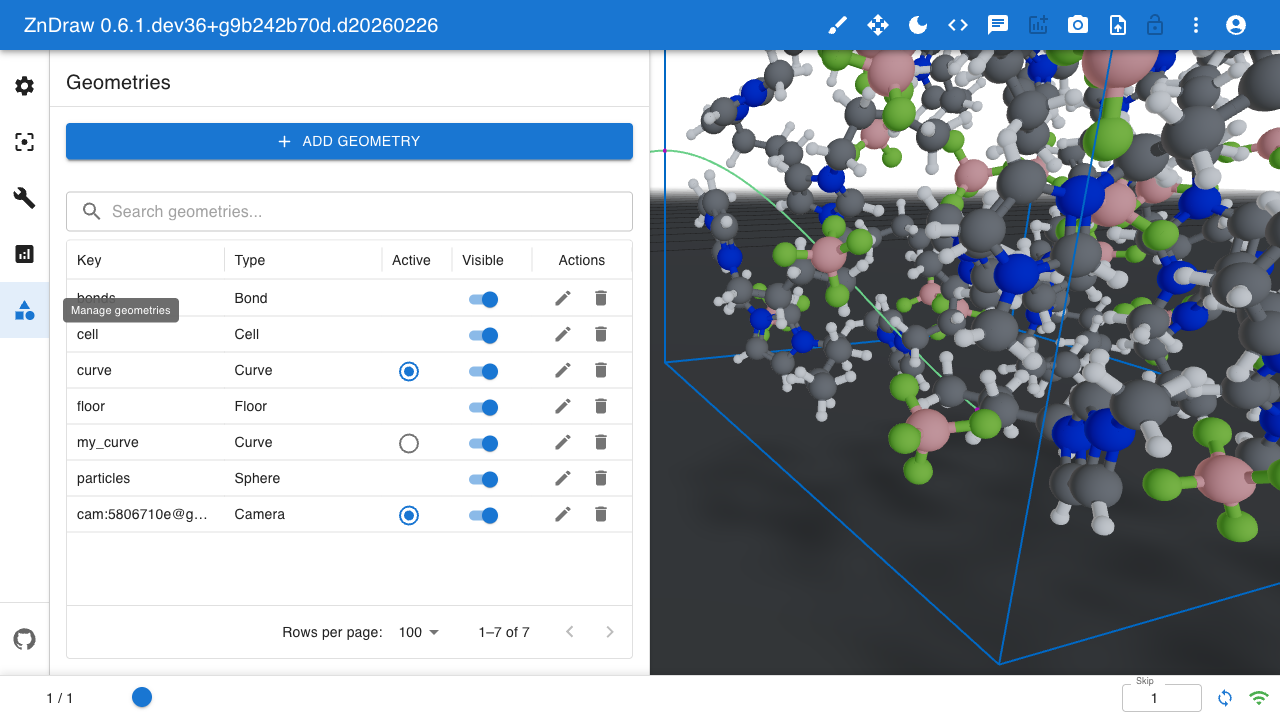
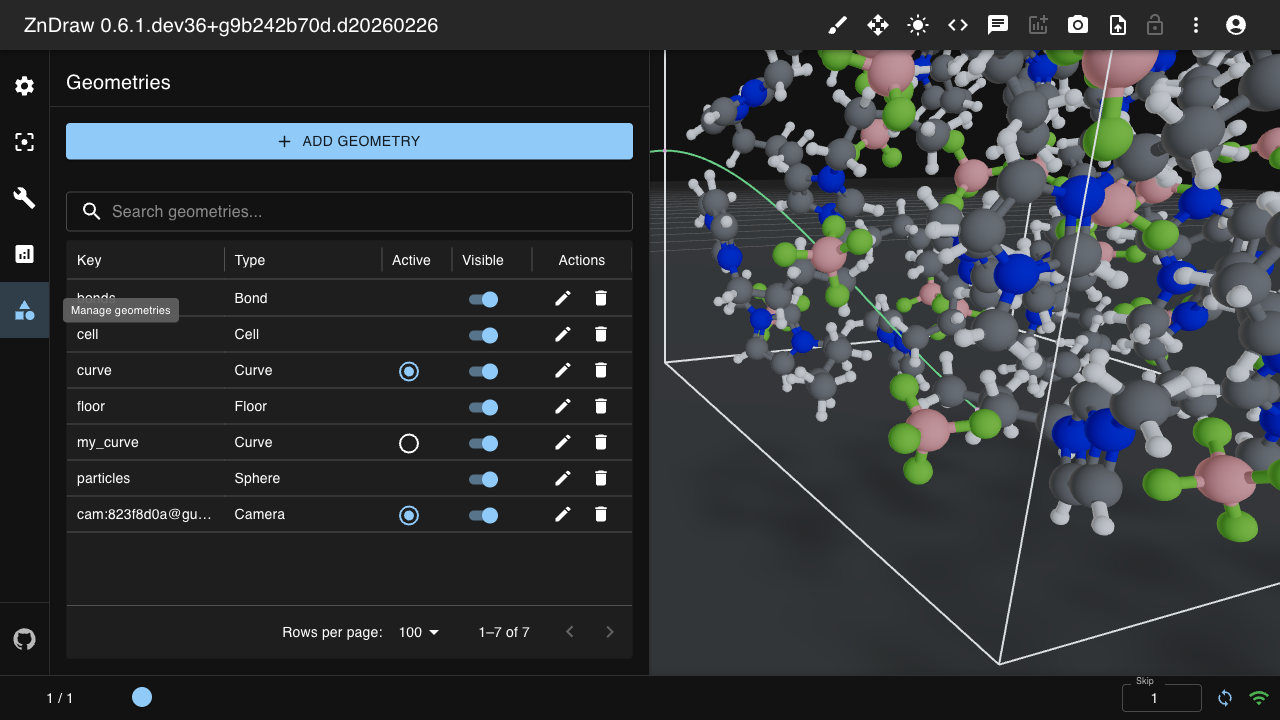
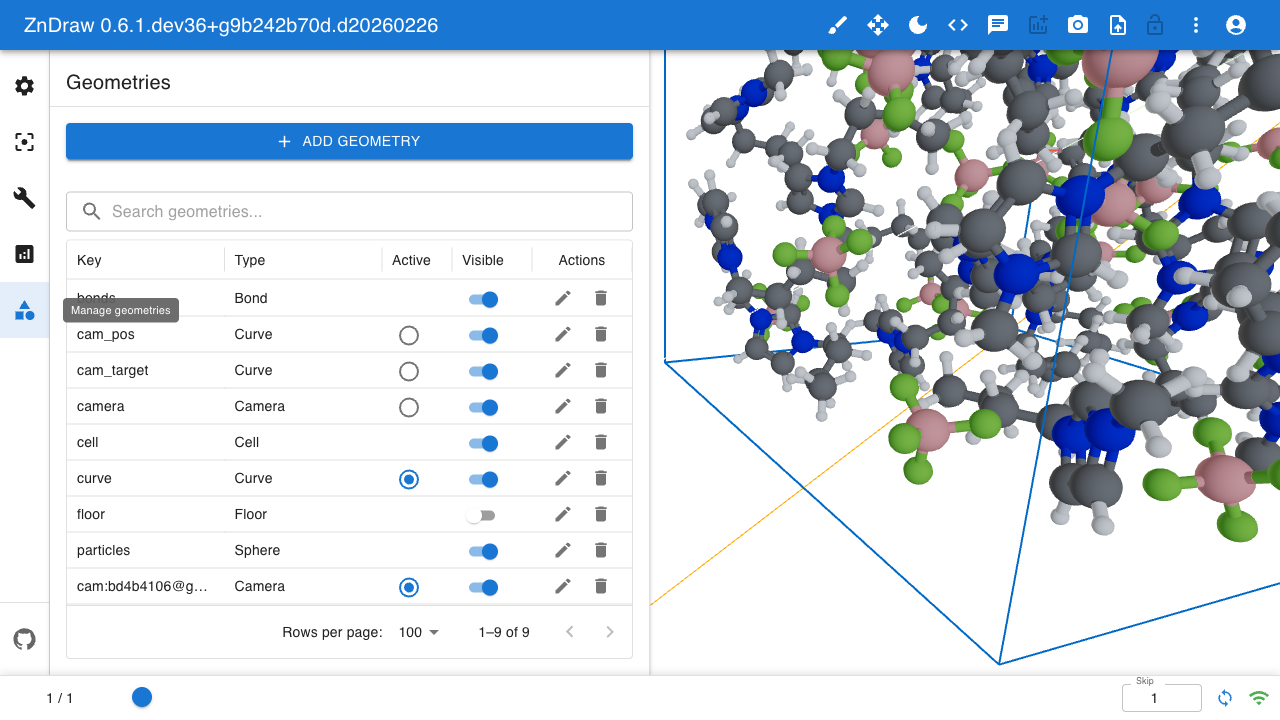
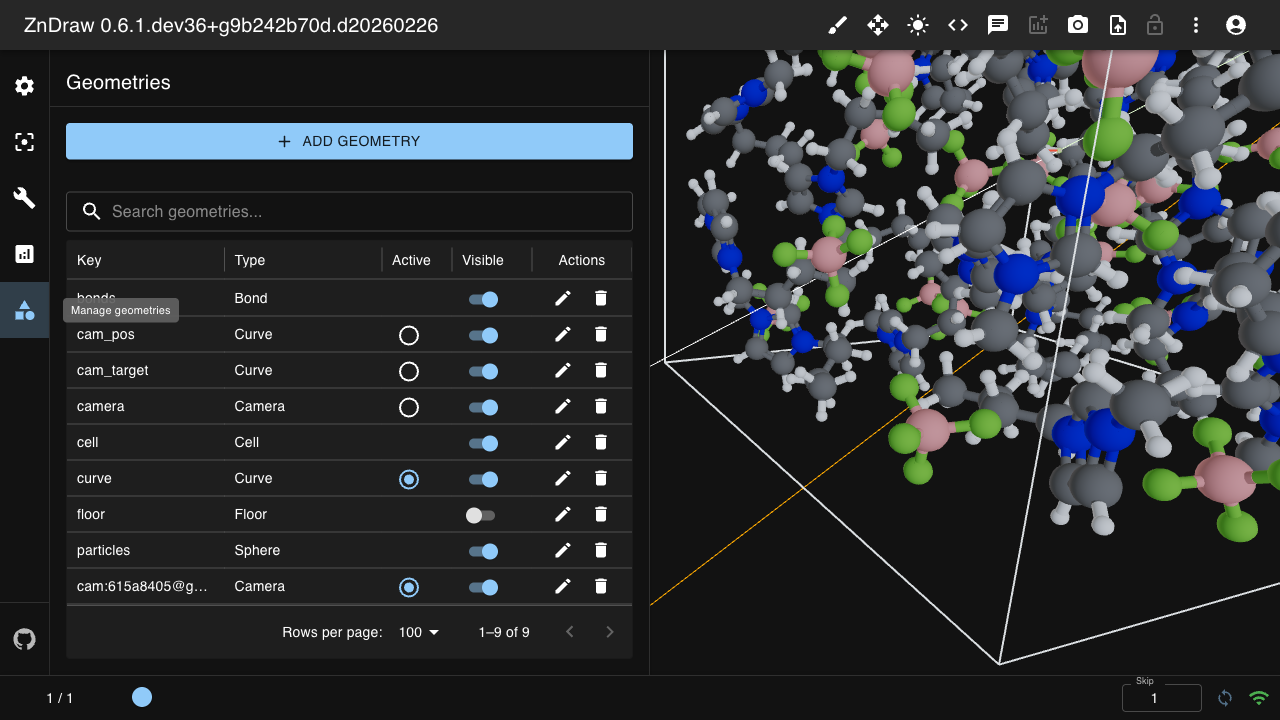
Manage geometries through the UI panel:
Camera Control
Control the camera programmatically. Cameras can use direct coordinates for static positions
or CurveAttachment to follow curve paths for animations:
from zndraw.geometries import Camera, Curve
from zndraw.transformations import CurveAttachment

# Static camera with direct coordinates
vis.geometries["camera"] = Camera(
    position=(0, 5, 10),
    target=(0, 0, 0),
    fov=60
)

# Animated camera following curves
vis.geometries["cam_path"] = Curve(
    position=[(25, 15, 25), (30, 20, 15), (25, 15, 5)],
    color="#3498db"
)
vis.geometries["target_path"] = Curve(
    position=[(10, 10, 10), (12, 10, 10), (10, 10, 10)],
    color="#e74c3c"
)

vis.geometries["camera"] = Camera(
    position=CurveAttachment(geometry_key="cam_path", progress=0.5),
    target=CurveAttachment(geometry_key="target_path", progress=0.5),
    fov=60,
    helper_visible=True,
    helper_color="#00ff00"
)
You can mix direct coordinates with CurveAttachment:
# Camera follows curve but always looks at origin
vis.geometries["camera"] = Camera(
    position=CurveAttachment(geometry_key="flight_path", progress=0.0),
    target=(0, 0, 0),  # Fixed target
    fov=60
)
Camera parameters:
position: Direct(x, y, z)coordinates orCurveAttachmenttarget: Direct(x, y, z)coordinates orCurveAttachmentfov: Field of view in degrees (1-179, default 50)camera_type:CameraType.PERSPECTIVEorCameraType.ORTHOGRAPHIChelper_visible: Show camera cone visualizationhelper_color: Color of the helper (hex or named)near,far: Clipping planeszoom: Camera zoom factor
Default Camera
Set a default camera so that new browser sessions start with a specific view:
from zndraw.geometries import Camera

# Create a template camera
vis.geometries["template-cam"] = Camera(
    position=(10, 10, 30),
    target=(0, 0, 0),
    fov=60
)

# Set as default for new sessions
vis.default_camera = "template-cam"

# Check current default
print(vis.default_camera)  # "template-cam"

# Unset
vis.default_camera = None
When set, new frontend sessions joining the room will clone the default camera’s position, target, fov, and other properties instead of using model defaults.
In the UI, the default camera is indicated with a star icon in the geometry grid. Click the star to toggle the default camera setting.
Drawing Mode
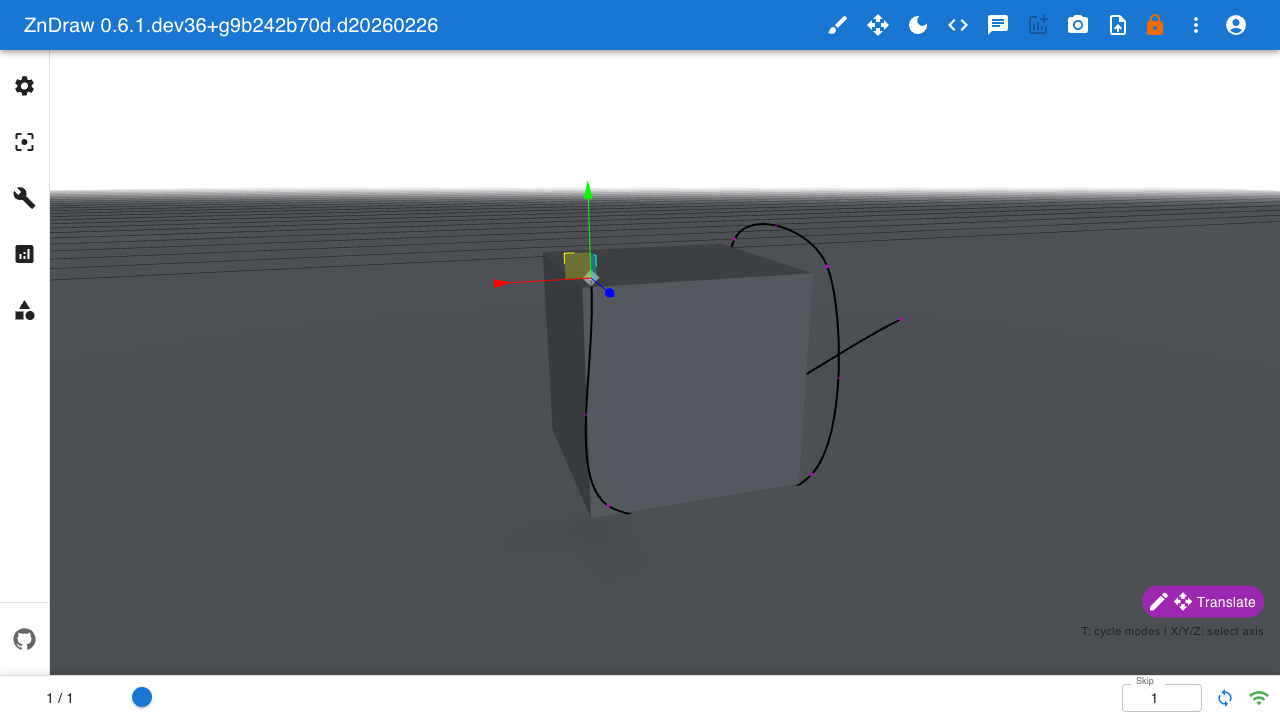
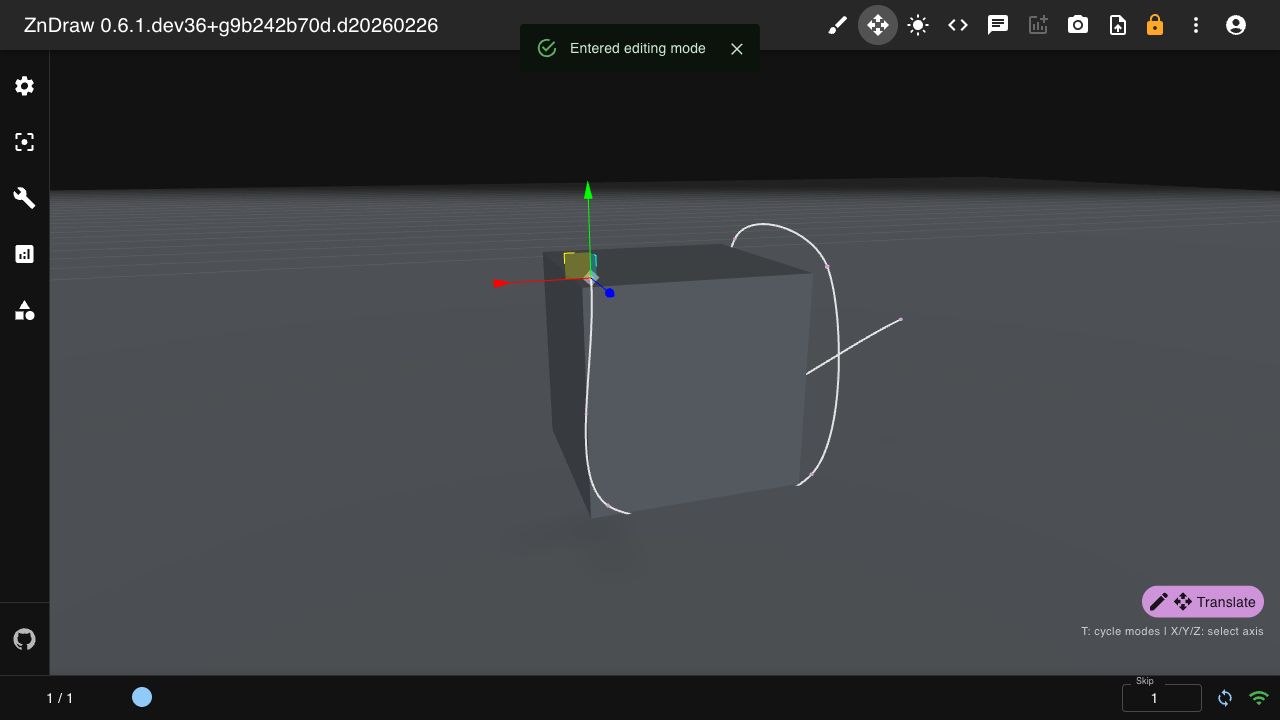
Draw curve control points interactively in the 3D view.
Entering Drawing Mode:
Press
Xto enter drawing mode (from view mode)A drawing marker appears at your cursor position
Click to add control points to the active curve
Press
Xagain to exit and return to view mode
The drawing marker shows where a new point will be added. It turns red when the cursor is over an invalid position.
Note
Drawing mode only works with Curve geometries that have static positions. See Keyboard Shortcuts for the complete list of keyboard controls.
Editing Mode
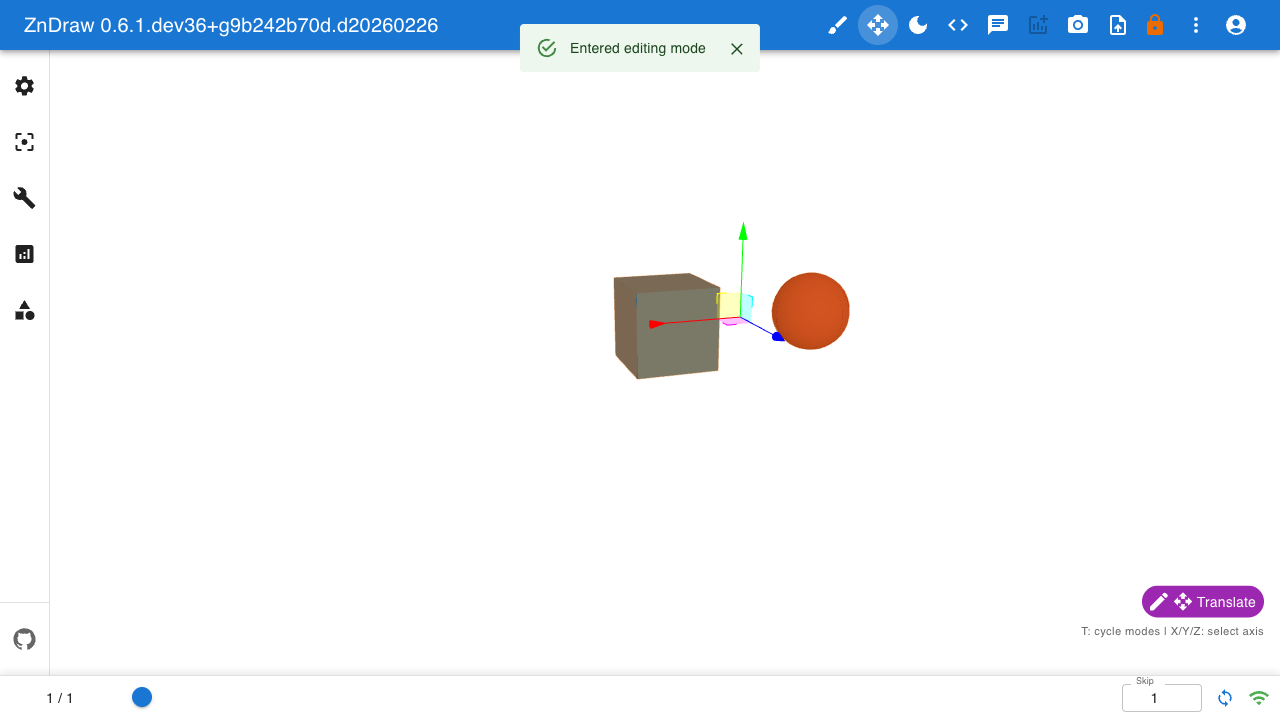
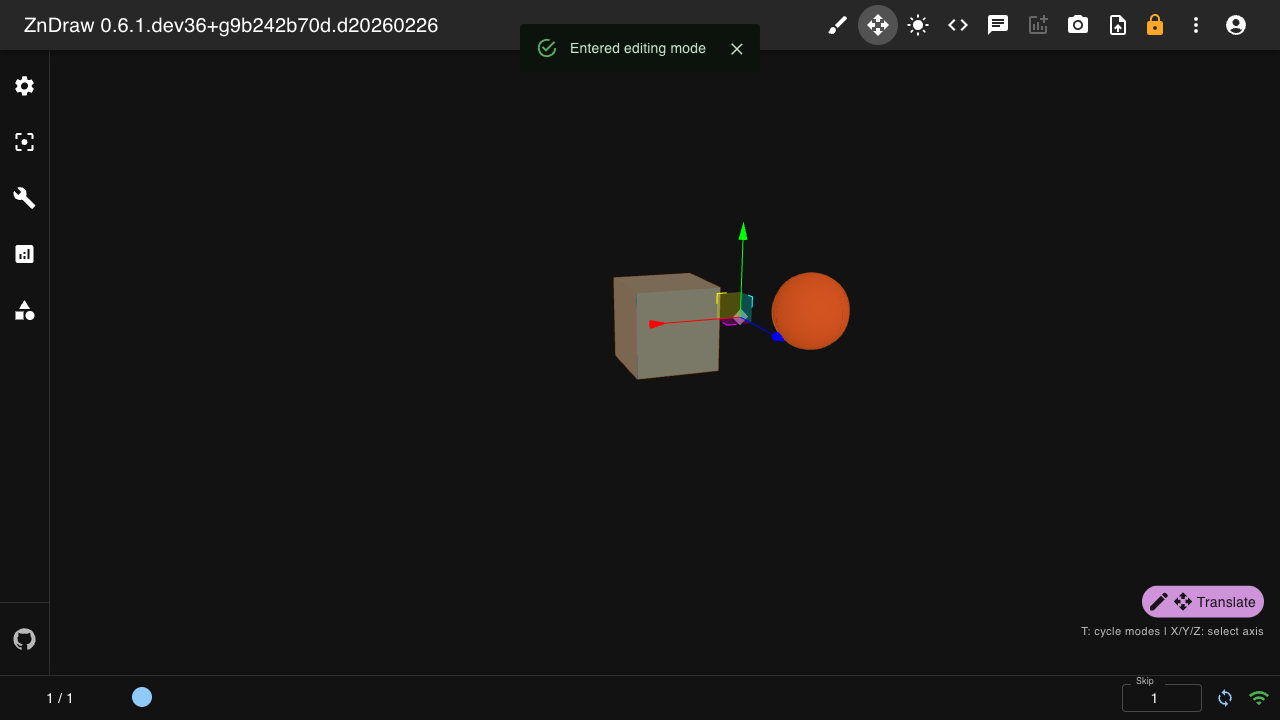
Transform geometries interactively using translate, rotate, and scale controls.
Entering Editing Mode:
Press
Eto enter editing mode (from view mode)Select geometry instances by clicking on them
Use the transform gizmo to manipulate selected objects
Press
Tto cycle between translate, rotate, and scale modesHold
X,Y, orZto constrain movement to a single axisPress
Sto save changesPress
Eagain to exit and return to view mode
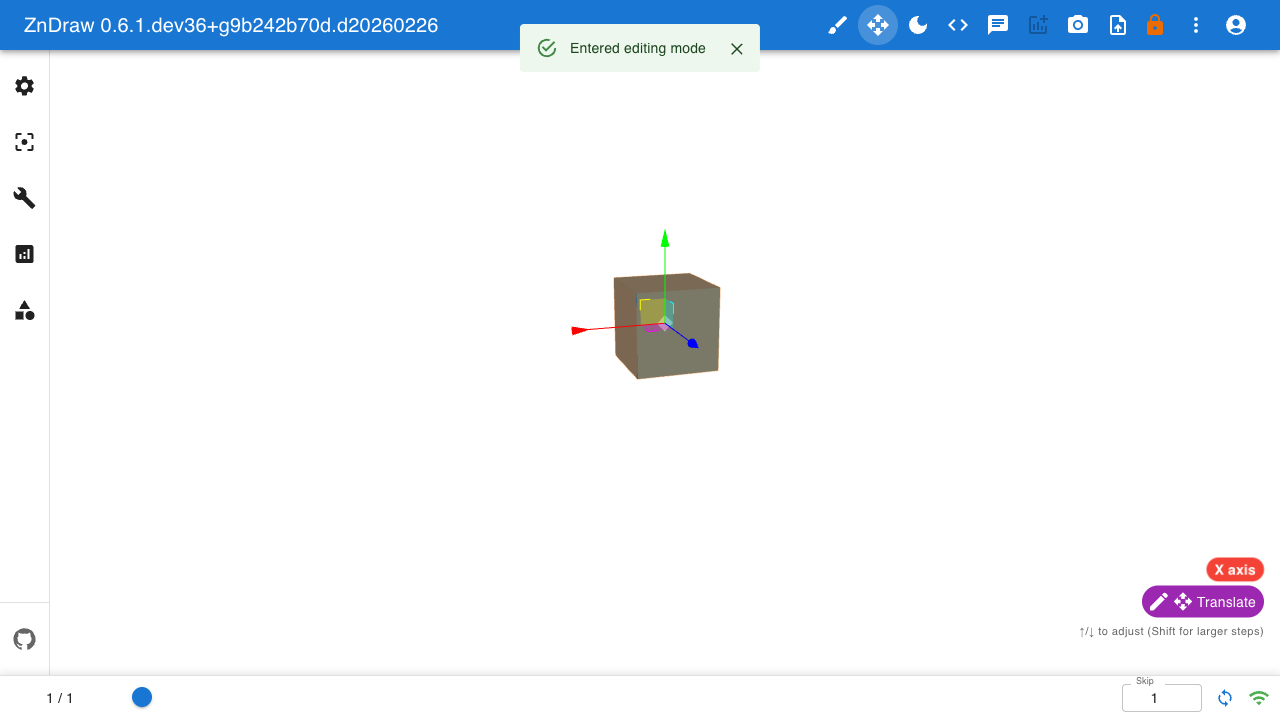
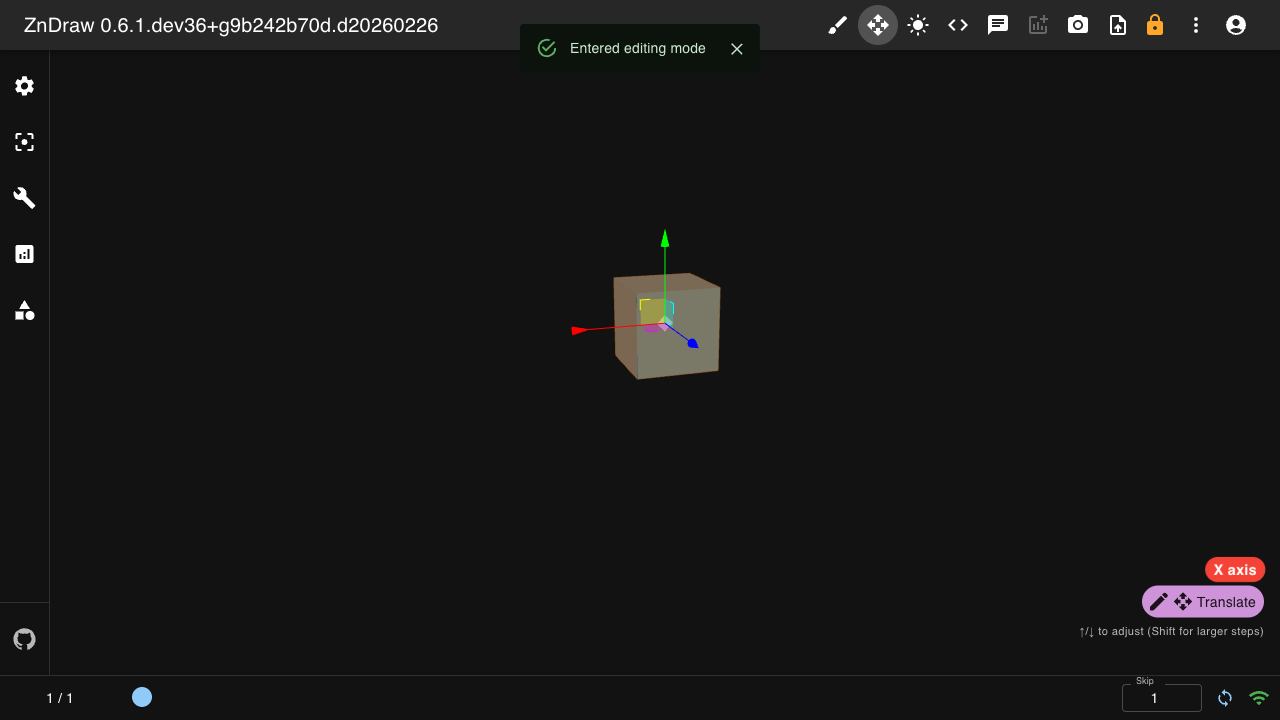
When holding an axis key, a colored chip indicates the active constraint.
Editing Curves:
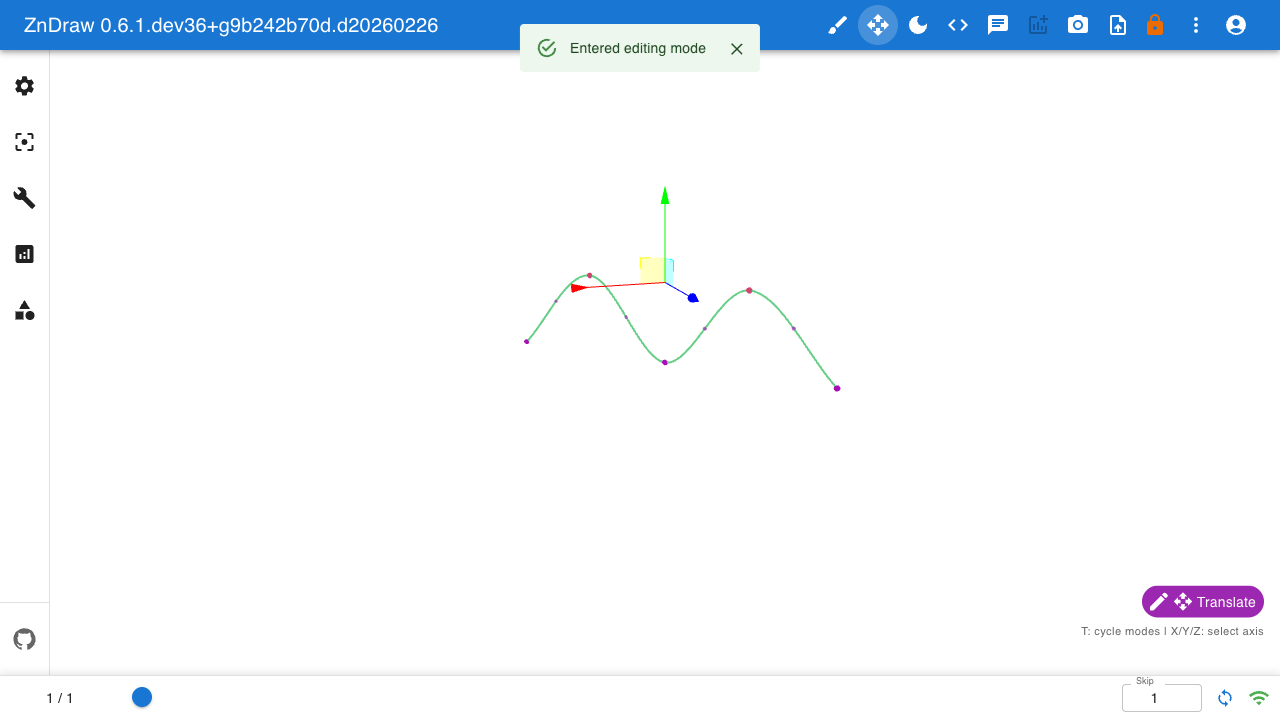
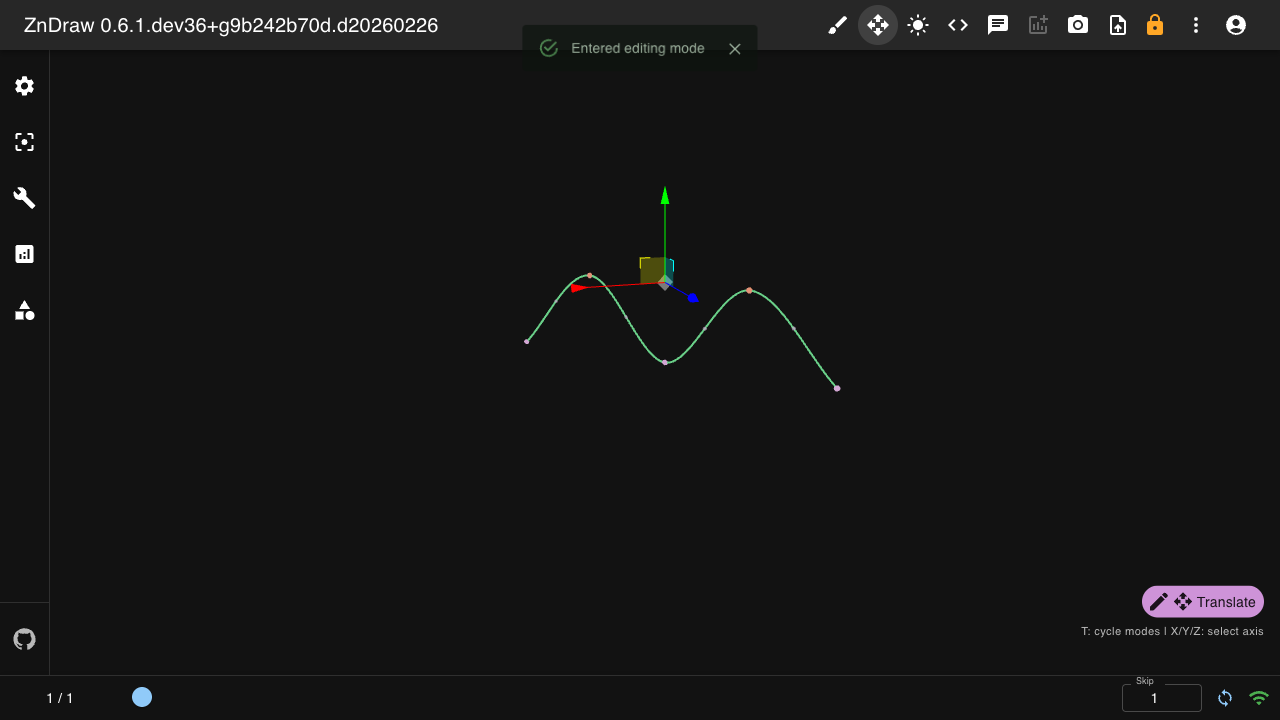
In editing mode, curves display virtual markers between control points.
Click a virtual marker to insert a new control point at that position.
Use Delete or Backspace to remove selected markers.
Note
See Keyboard Shortcuts for all controls.
Dynamic Properties
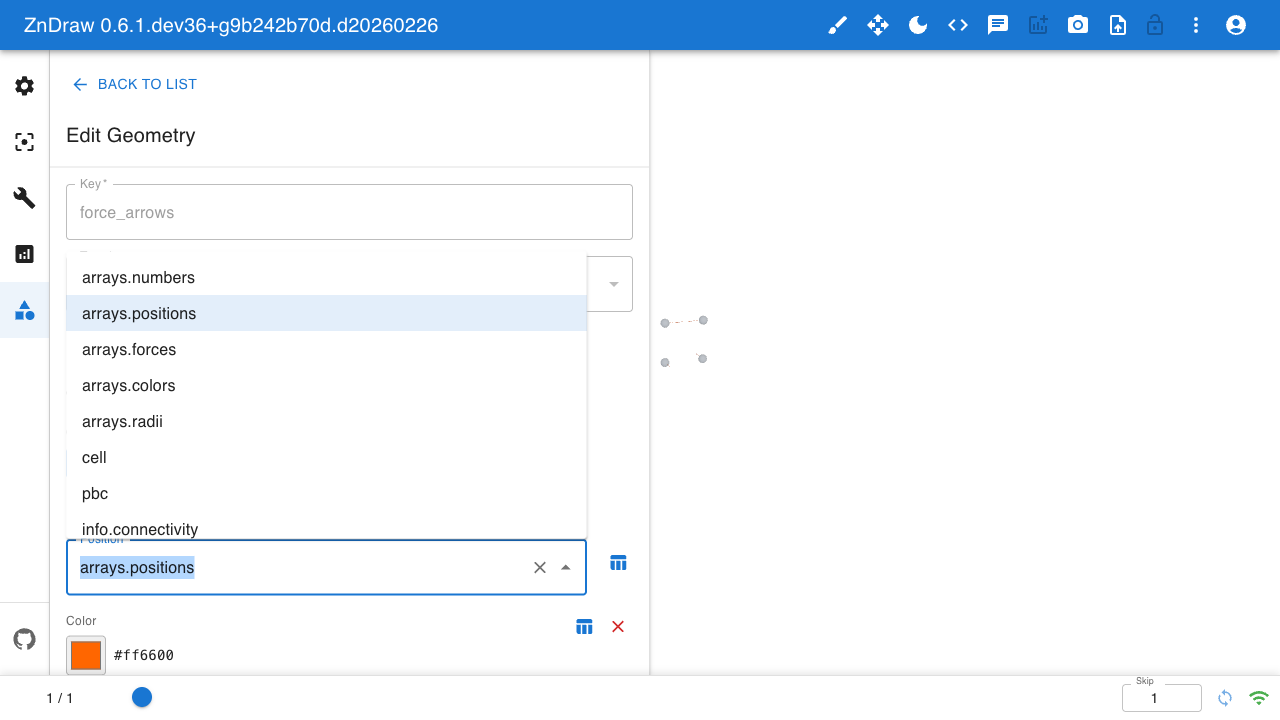
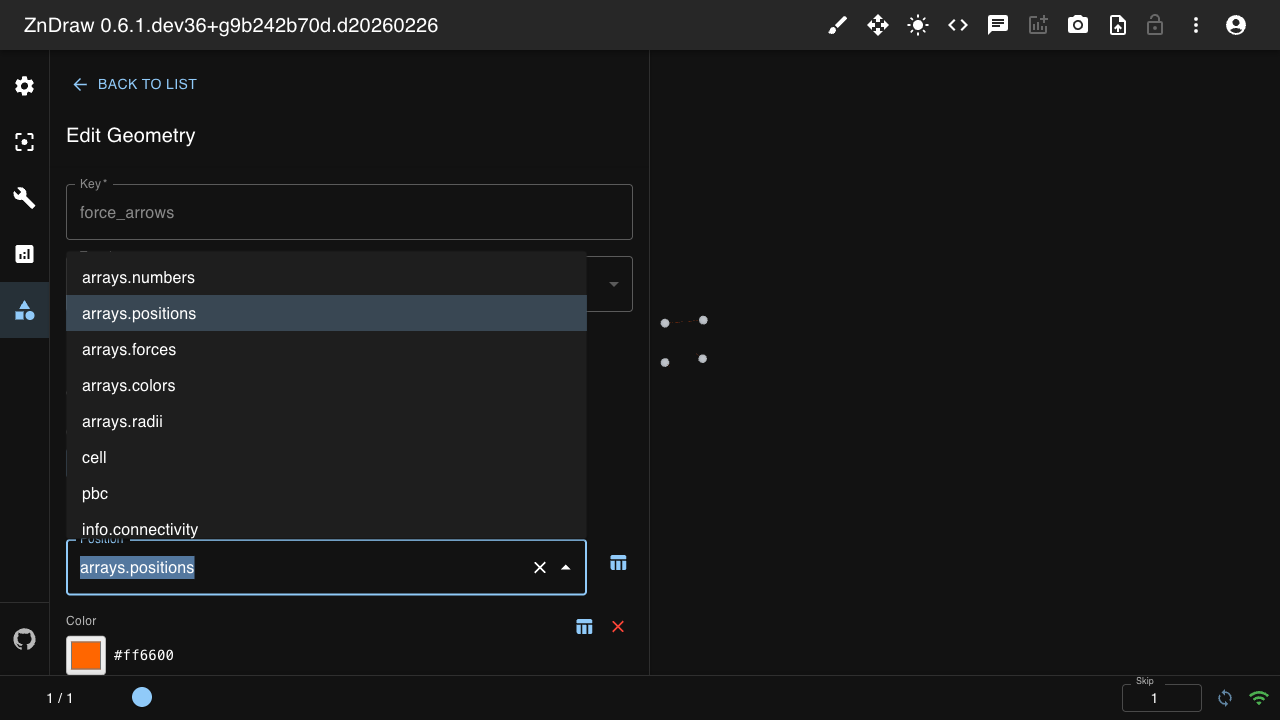
Geometry properties like position and direction can reference atom data dynamically.
Instead of specifying fixed coordinates, use string references to atom arrays:
import numpy as np
from zndraw.geometries import Arrow

# Create atoms with calculated forces
atoms = ase.Atoms("H4", positions=[(0, 0, 0), (2, 0, 0), (0, 2, 0), (2, 2, 0)])
atoms.arrays["forces"] = np.array([
    [0, 0, 1], [0, 0, -1], [1, 0, 0], [-1, 0, 0]
], dtype=float)
vis.append(atoms)

# Create arrows showing forces at each atom position
vis.geometries["force_arrows"] = Arrow(
    position="arrays.positions",  # Reference atom positions
    direction="arrays.forces",     # Reference force vectors
    color=["#ff6600"],
    radius=0.1,
)
Available dynamic property references are computed from the atoms.info, atoms.arrays, and if available, atoms.calc.results dictionaries:
arrays.positions- Atom positionsarrays.numbers- Atomic numbersarrays.colors- Per-atom colorsarrays.radii- Per-atom radiiarrays.forces- Calculated forces (if available)calc.energy- Calculated energyinfo.connectivity- Bond connectivity
Constraint Visualization
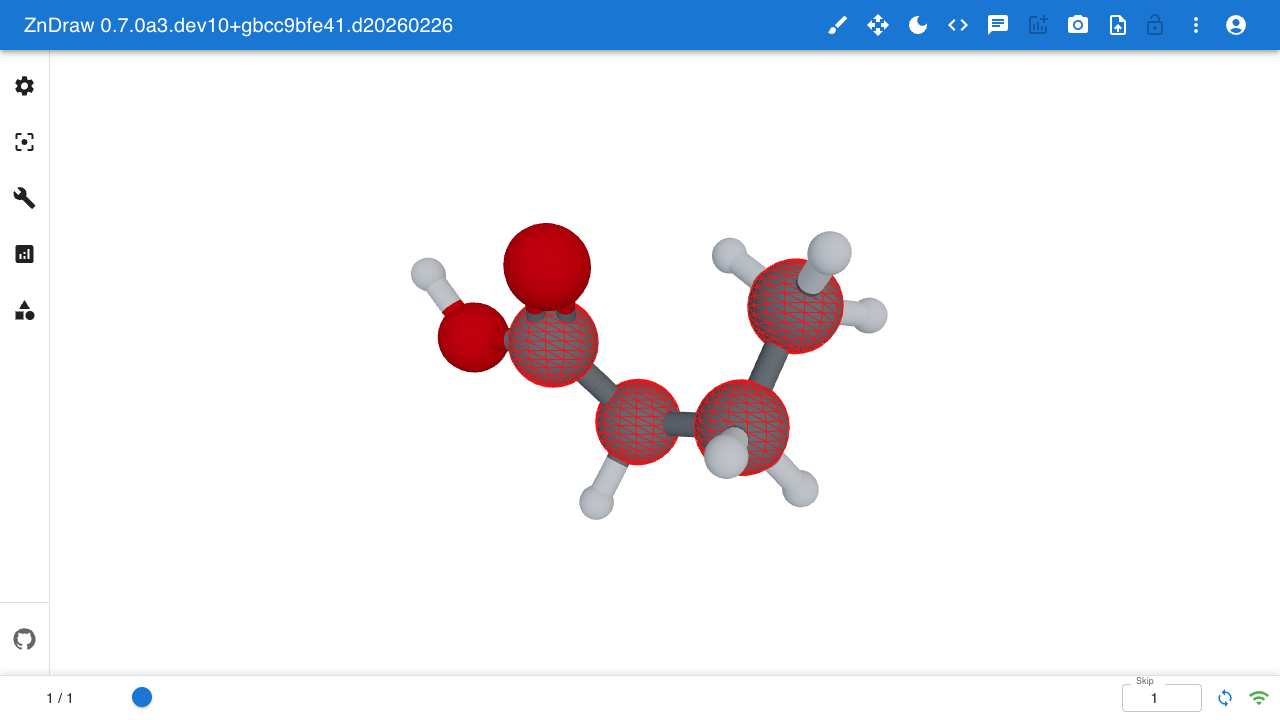
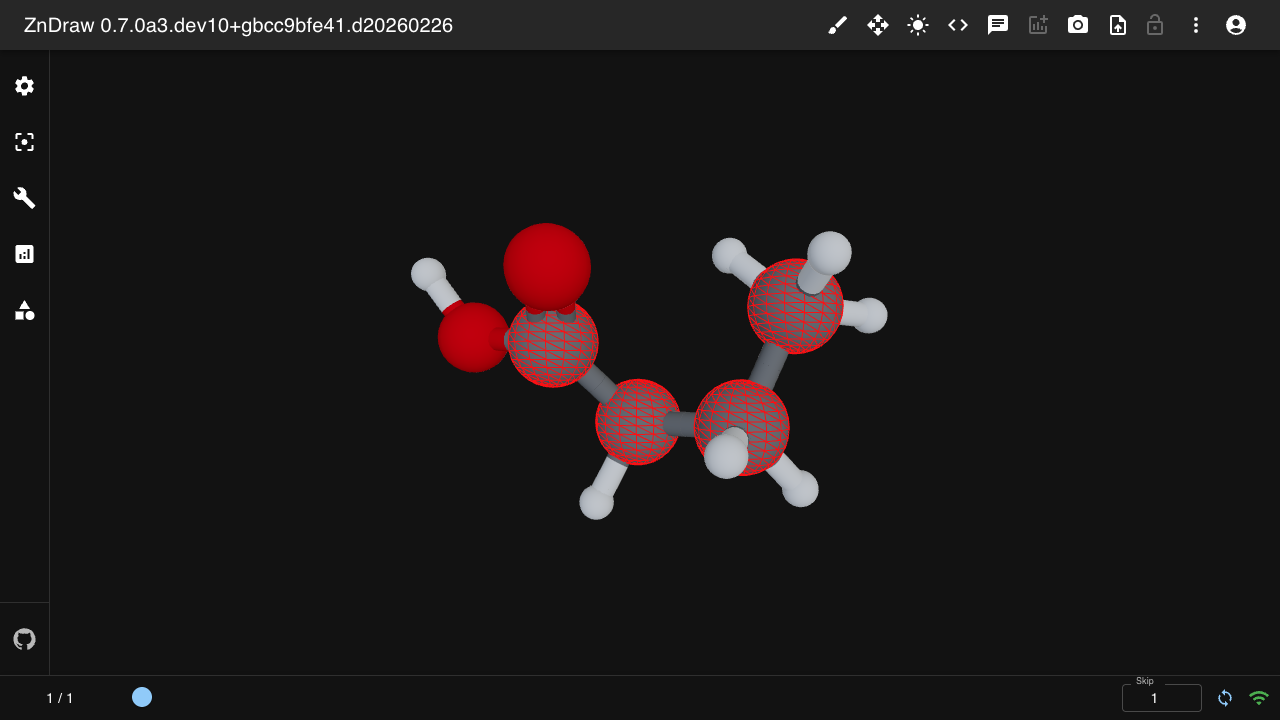
ZnDraw automatically visualizes atomic constraints. When you upload atoms with
ASE constraints, a constraints-fixed-atoms geometry overlays red wireframe
spheres on the constrained atoms.
from molify import smiles2conformers
from ase.constraints import FixAtoms
from zndraw import ZnDraw

# Create butyric acid and constrain the carbon chain
atoms = smiles2conformers("CCCC(=O)O", numConfs=1)[0]
carbon_indices = [i for i, s in enumerate(atoms.symbols) if s == "C"]
atoms.set_constraint(FixAtoms(indices=carbon_indices))

vis = ZnDraw(url="http://localhost:8000")
vis.append(atoms)
The constrained carbon atoms will appear with a red wireframe sphere overlay, while the remaining atoms are undecorated.
Customization: Open the geometry panel and click constraints-fixed-atoms
to change the color, scale, or target a different constraint. The Transform
Editor shows a dropdown of all constraints in the current frame — select one
to switch which atoms are highlighted.
Isosurface
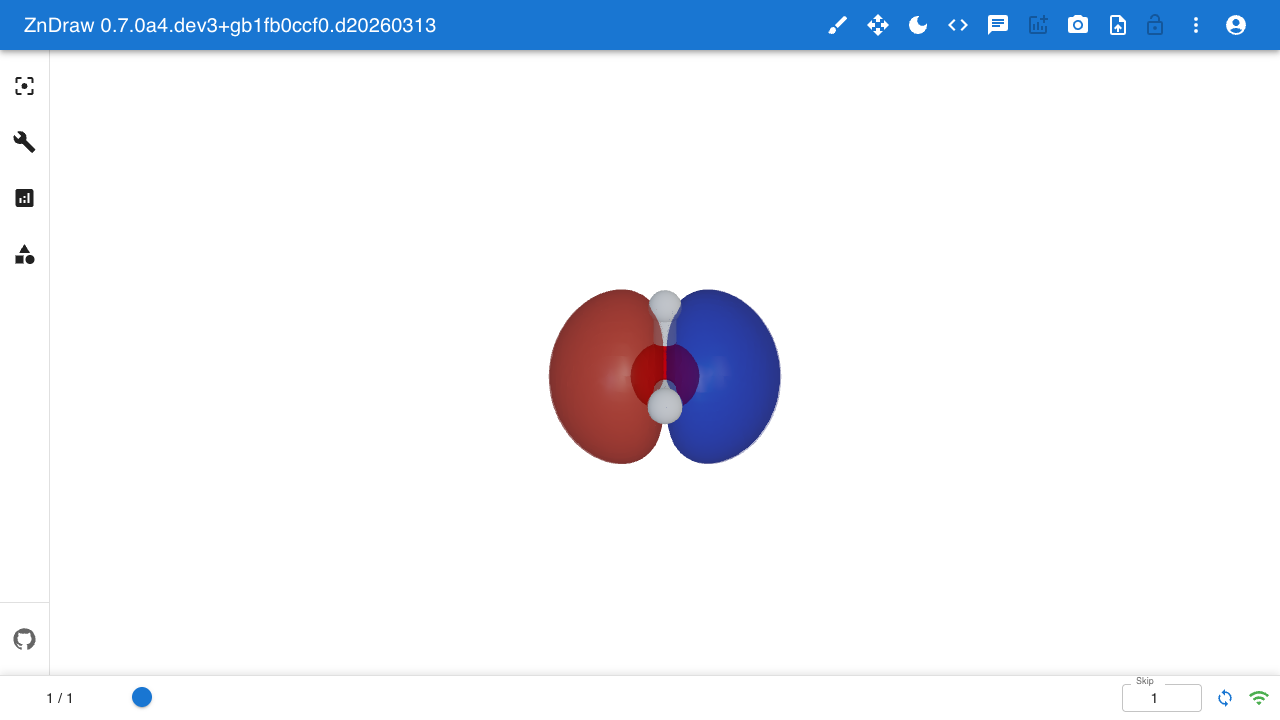
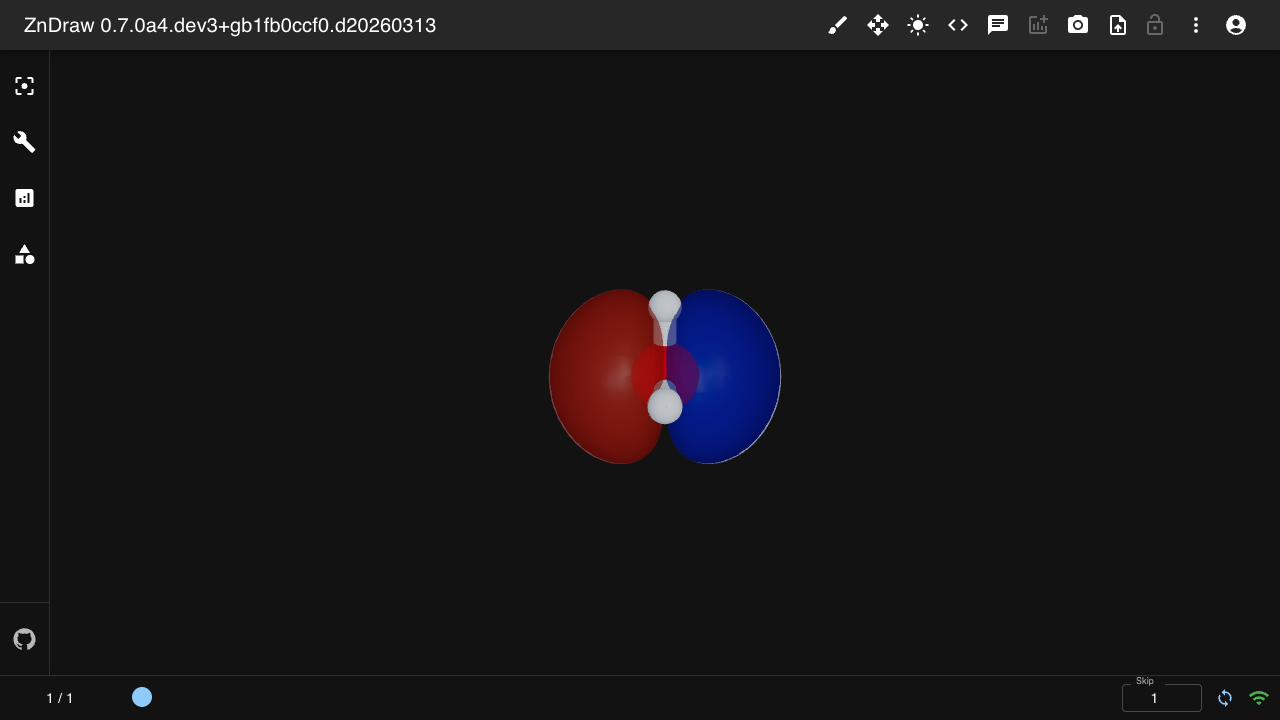
Visualize volumetric data (e.g. molecular orbitals, electron densities) as 3D isosurfaces.
The cube_key points to a frame info key containing a dict with:
grid: 3D float array of shape(Nx, Ny, Nz)— scalar field valuesorigin: 3-vector — world-space origin of the grid (Angstrom)cell:(3, 3)matrix — axis vectors spanning the grid (Angstrom)
import numpy as np
from zndraw.geometries import Isosurface

# Store volumetric data in a frame
atoms.info["orbital_homo"] = {
    "grid": orbital_data,     # np.ndarray (Nx, Ny, Nz)
    "origin": origin,         # np.ndarray (3,)
    "cell": cell_vectors,     # np.ndarray (3, 3)
}
vis.append(atoms)

# Create positive and negative lobes
vis.geometries["homo_pos"] = Isosurface(
    cube_key="info.orbital_homo", isovalue=0.02, color="#2244CC",
)
vis.geometries["homo_neg"] = Isosurface(
    cube_key="info.orbital_homo", isovalue=-0.02, color="#CC4422",
)
Parameters:
cube_key: Frame info key for the volumetric data dict (dynamic dropdown in UI)isovalue: Scalar threshold for surface extraction (default0.02, range-0.25to0.25)resolution: Mesh resolution,0= coarse/fast,1= fine/slow (default1.0)opacity: Surface transparency,0= invisible,1= opaque (default0.6)color: Surface color as hex string (default#2244CC)
Analysis & Figures
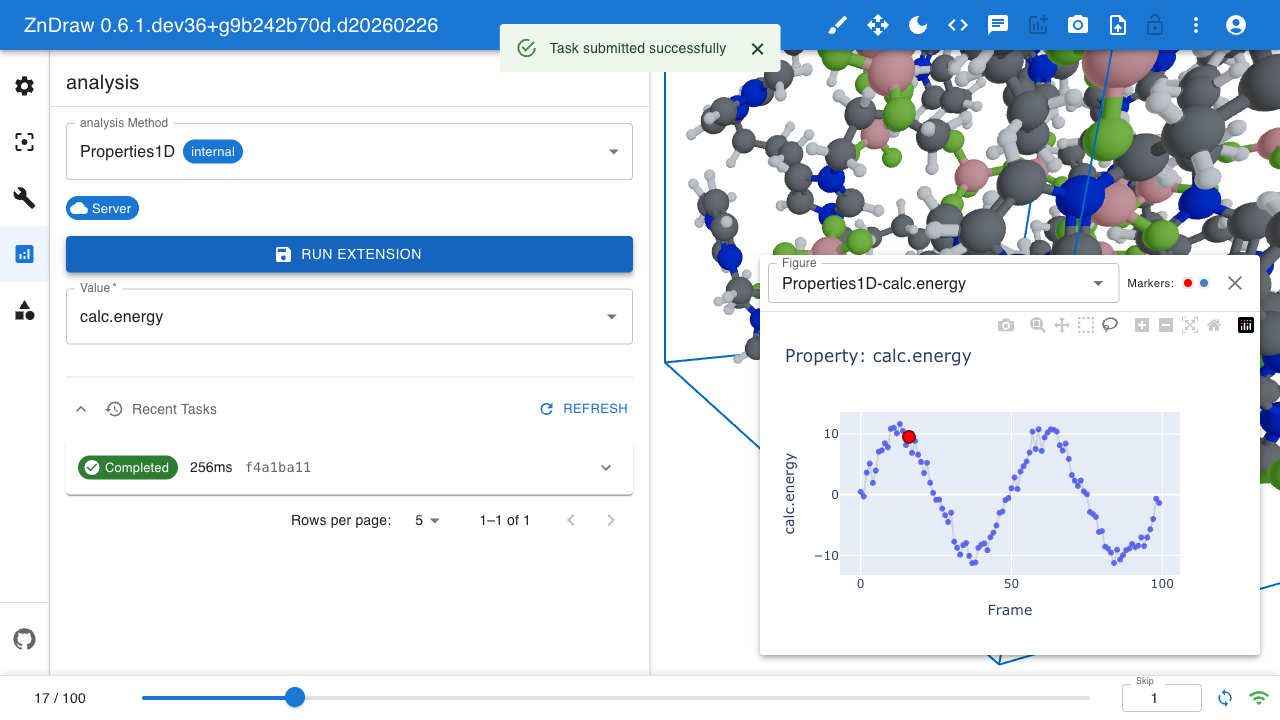
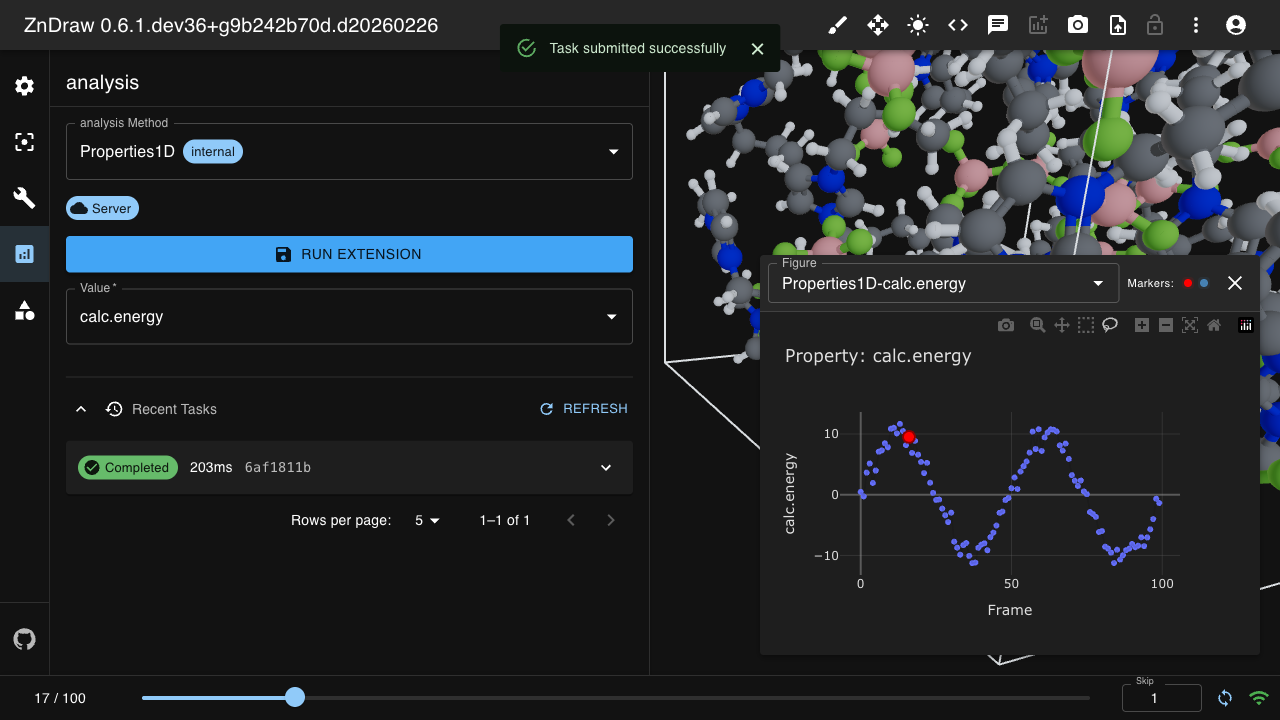
Display interactive Plotly figures with vis.figures:
import plotly.express as px
import pandas as pd

# Create figure from data
df = pd.DataFrame({
    "frame": range(len(vis)),
    "energy": [atoms.get_potential_energy() for atoms in vis]
})

fig = px.line(df, x="frame", y="energy", title="Energy vs Frame")

# Display in ZnDraw
vis.figures["energy_plot"] = fig

# Remove figure
del vis.figures["energy_plot"]
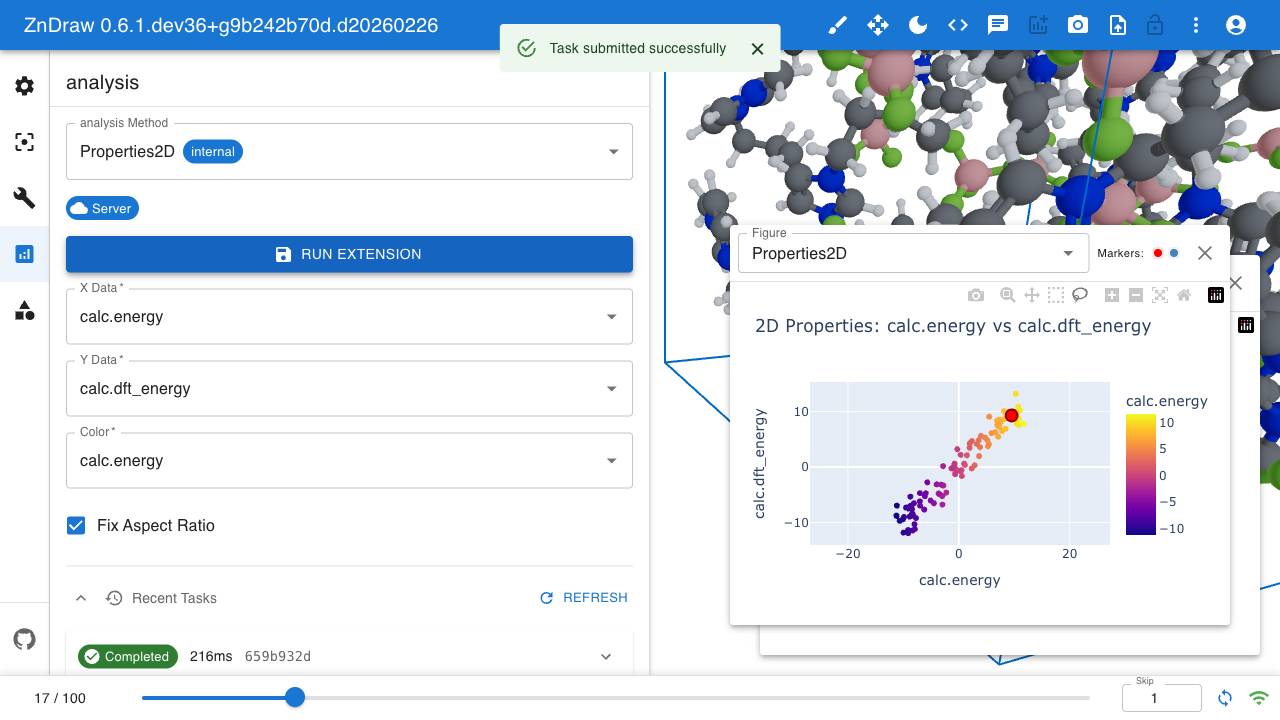
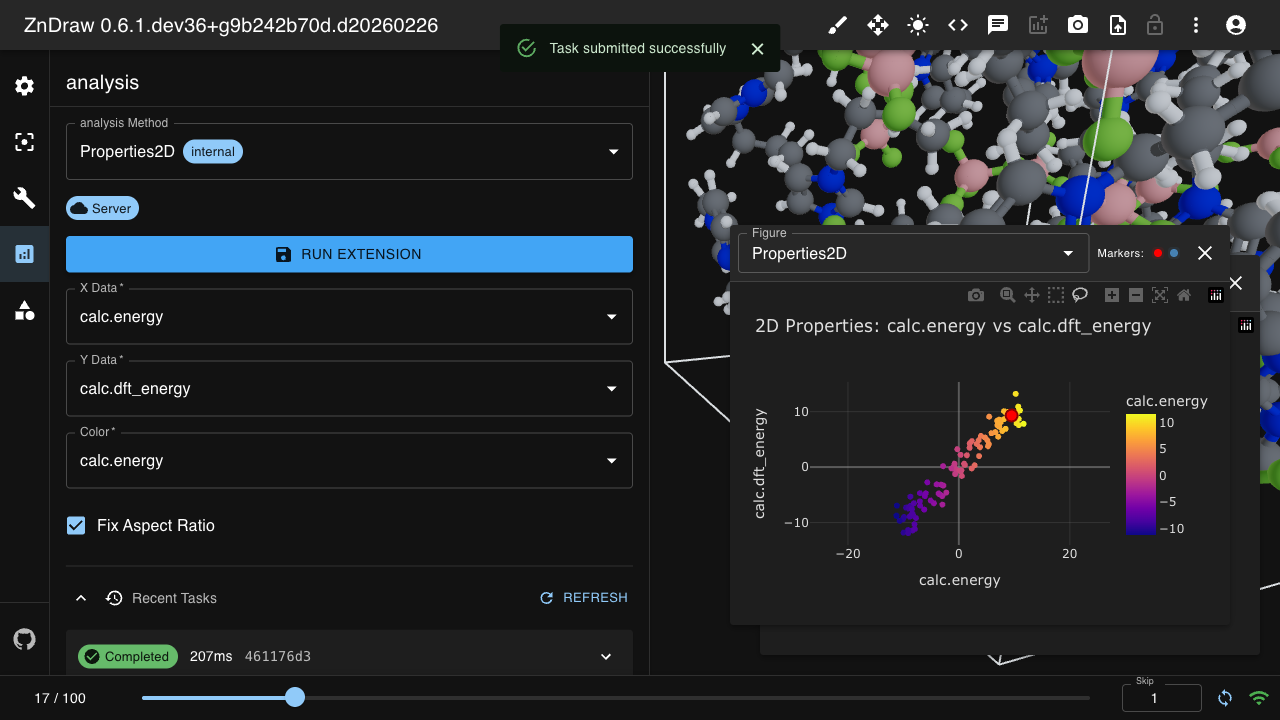
2D analysis with scatter plots:
# 2D scatter plot
df = pd.DataFrame({
    "ml_energy": [...],
    "dft_energy": [...]
})

fig = px.scatter(df, x="ml_energy", y="dft_energy", title="ML vs DFT Energy")

vis.figures["comparison"] = fig
Molecule Building
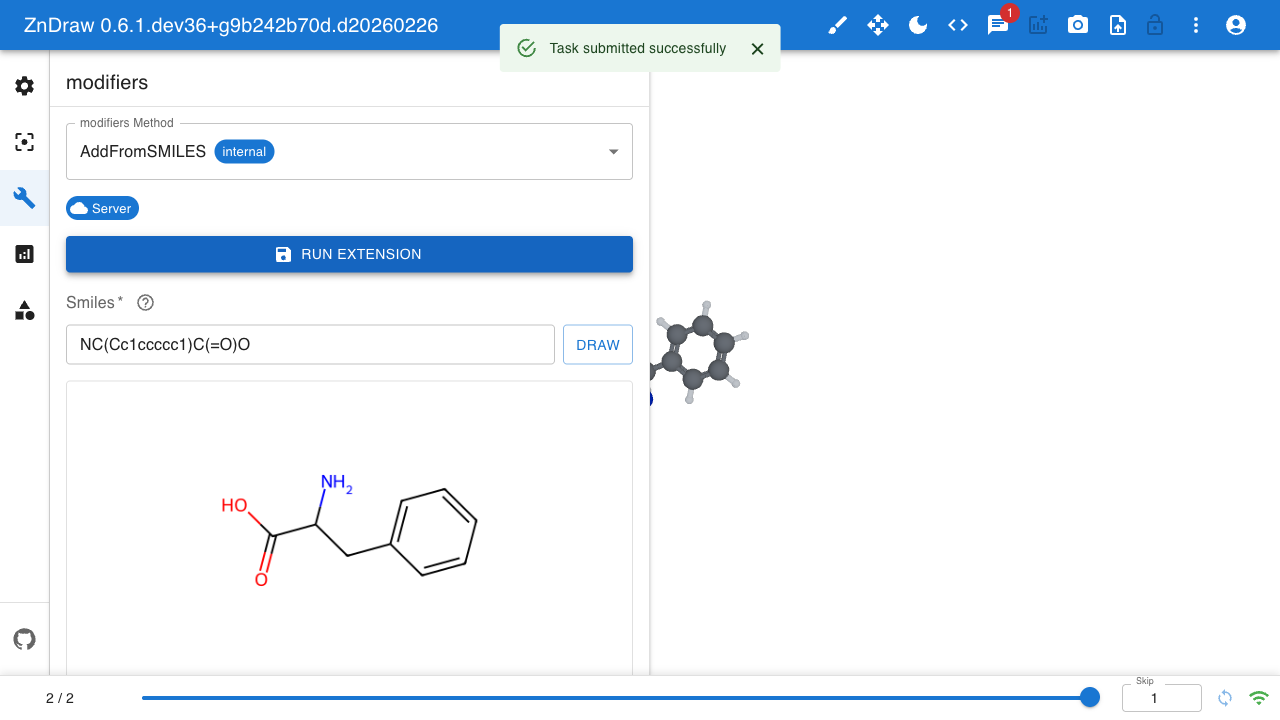
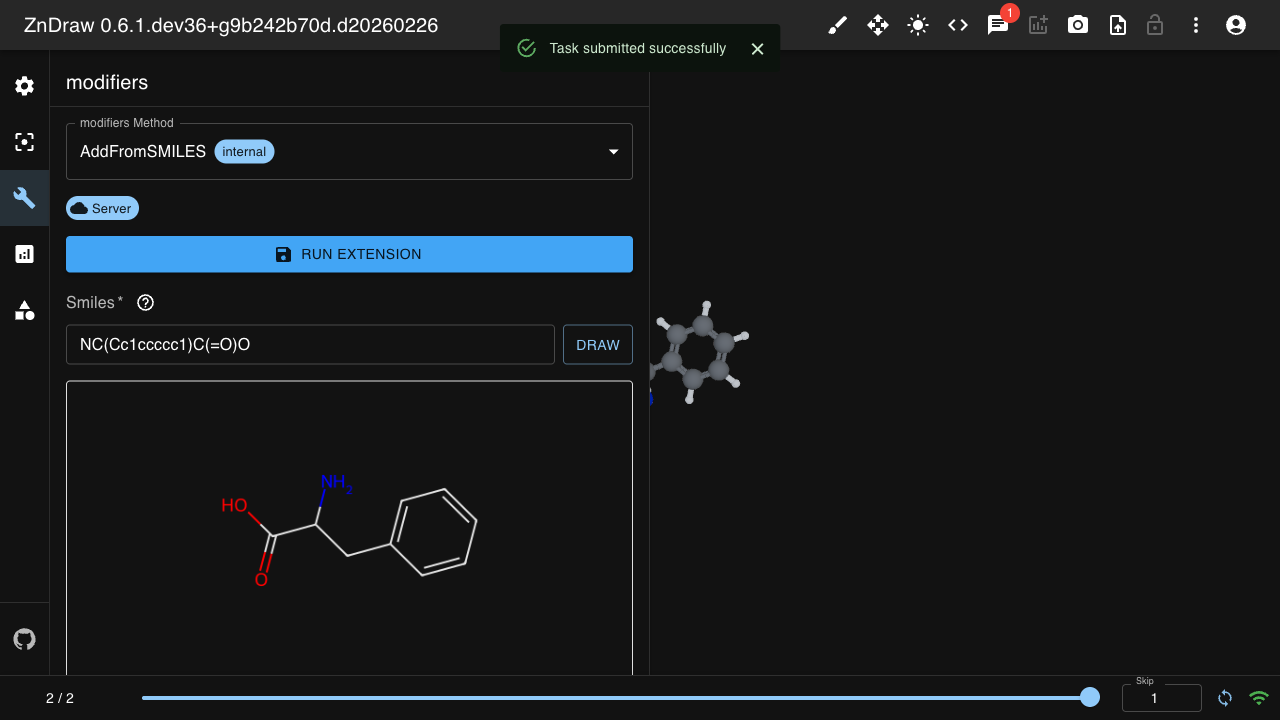
Build molecules from SMILES strings using the molecule builder:
Add molecules from SMILES notation
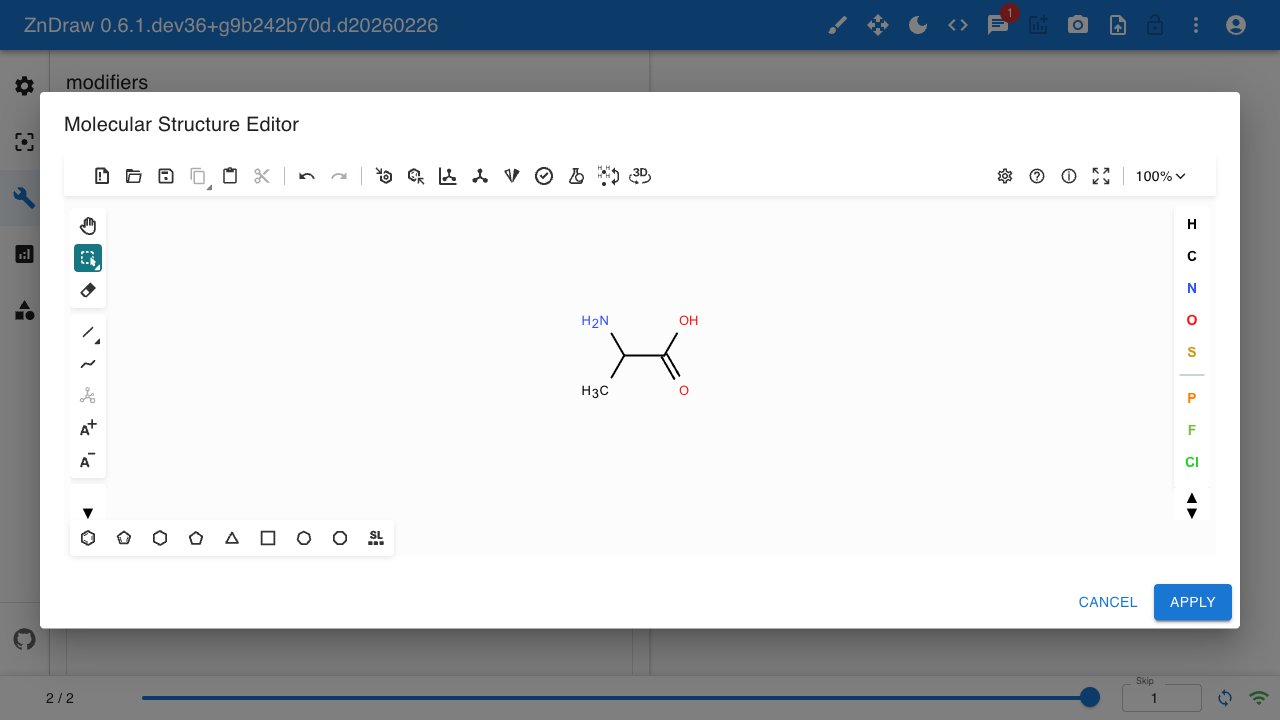
Use the Ketcher molecular editor
Pack molecules into simulation boxes
Ketcher Editor:
Note
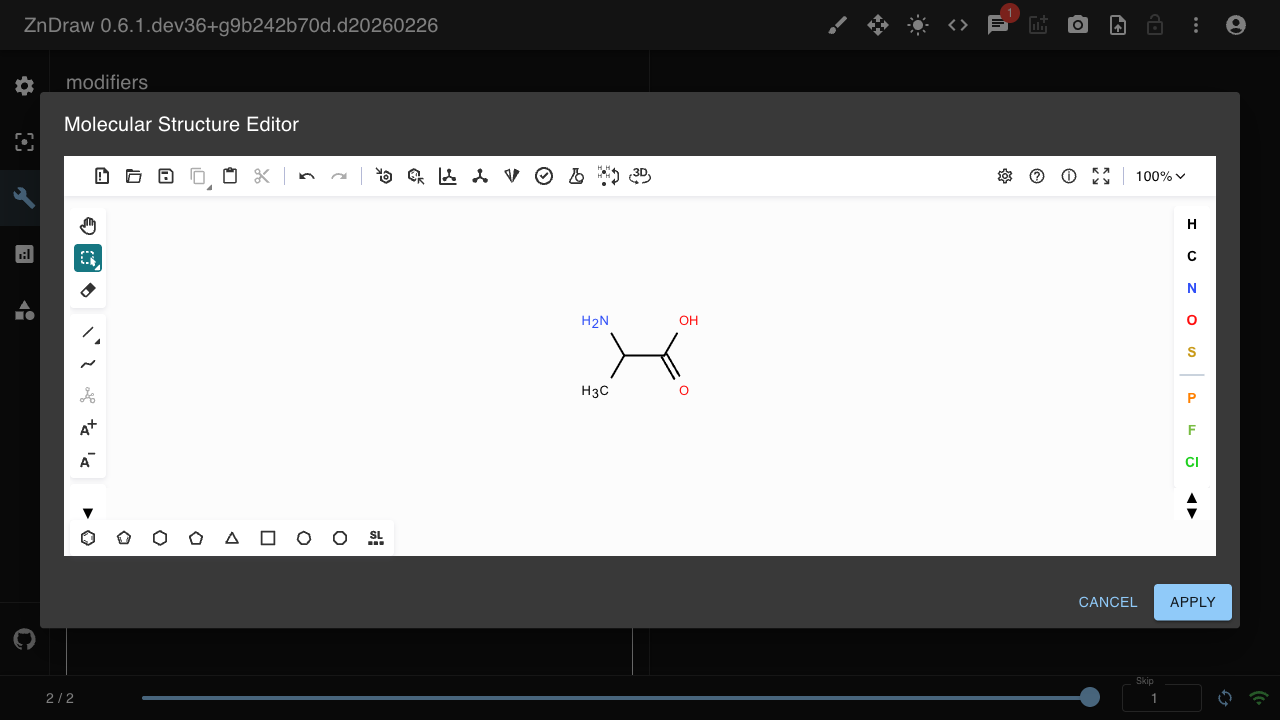
The Ketcher editor currently does not support dark mode. See Ketcher issue #5353 for more information.
Chat & Logging
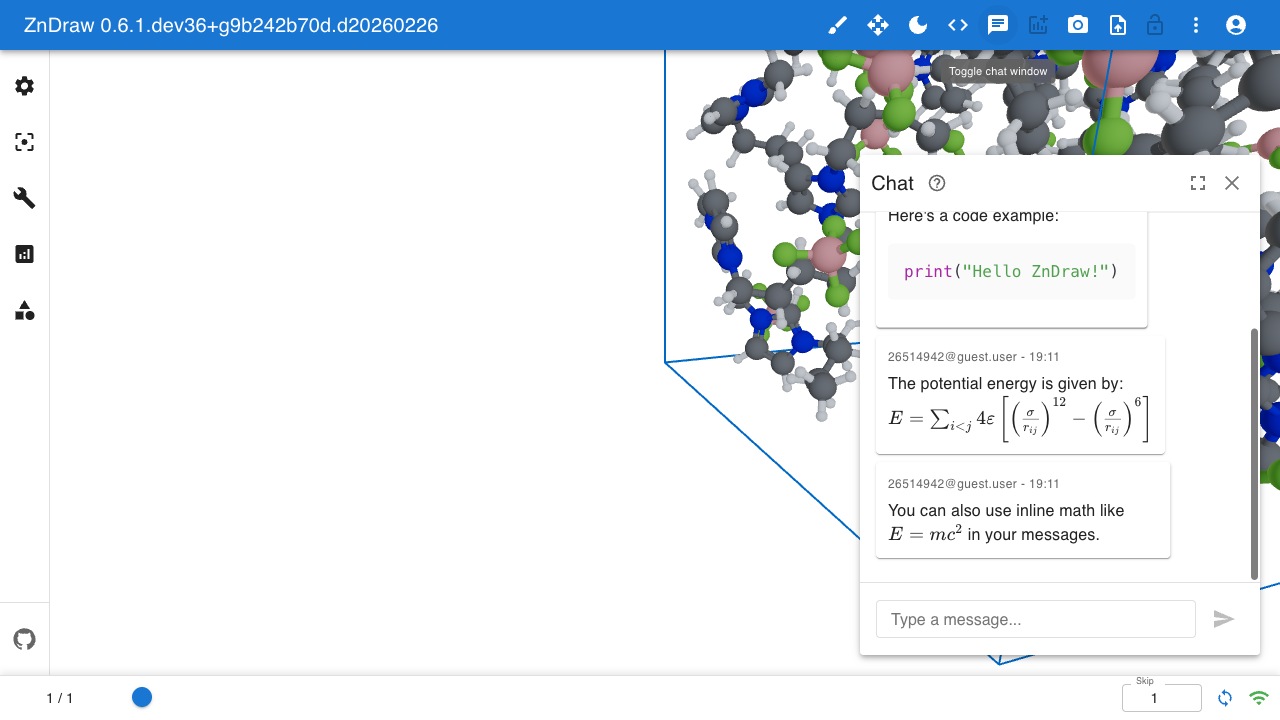
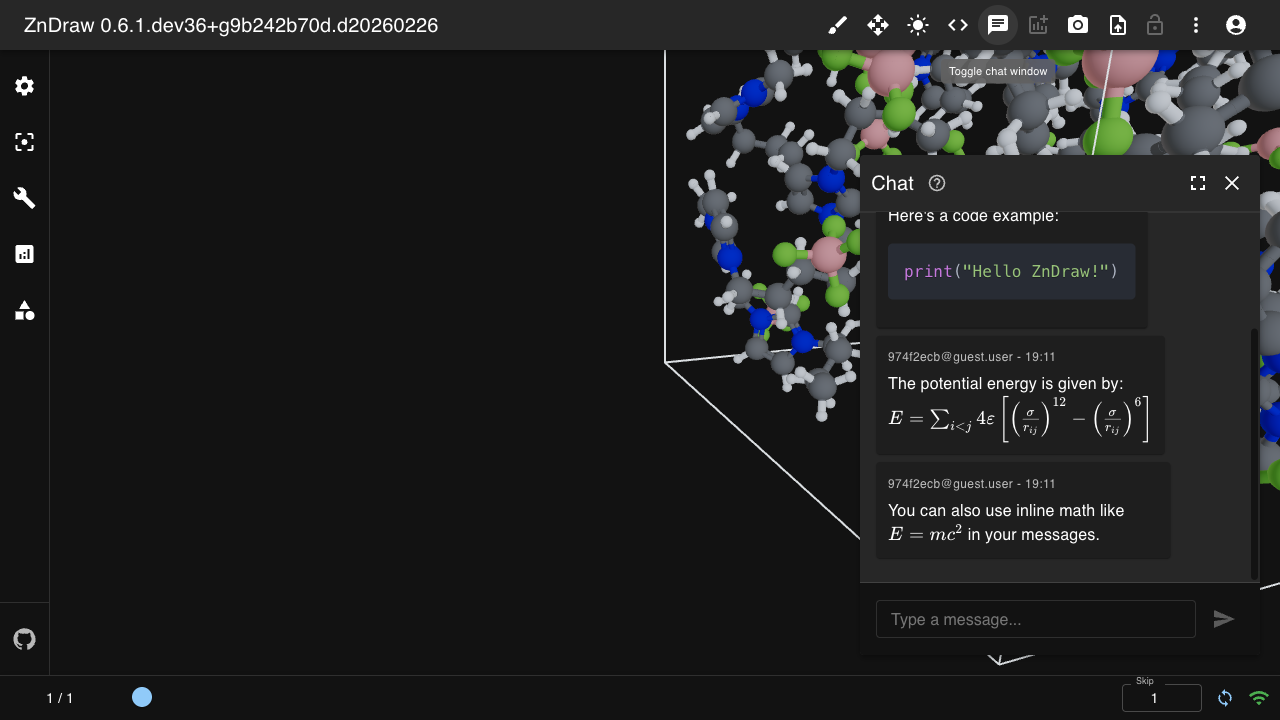
Send messages to the chat panel:
# Send a message
vis.log("Analysis complete!")

# Messages support Markdown and LaTeX
vis.log("Energy: $E = mc^2$")

# Get chat history
messages = vis.get_messages(limit=10)
Frame References
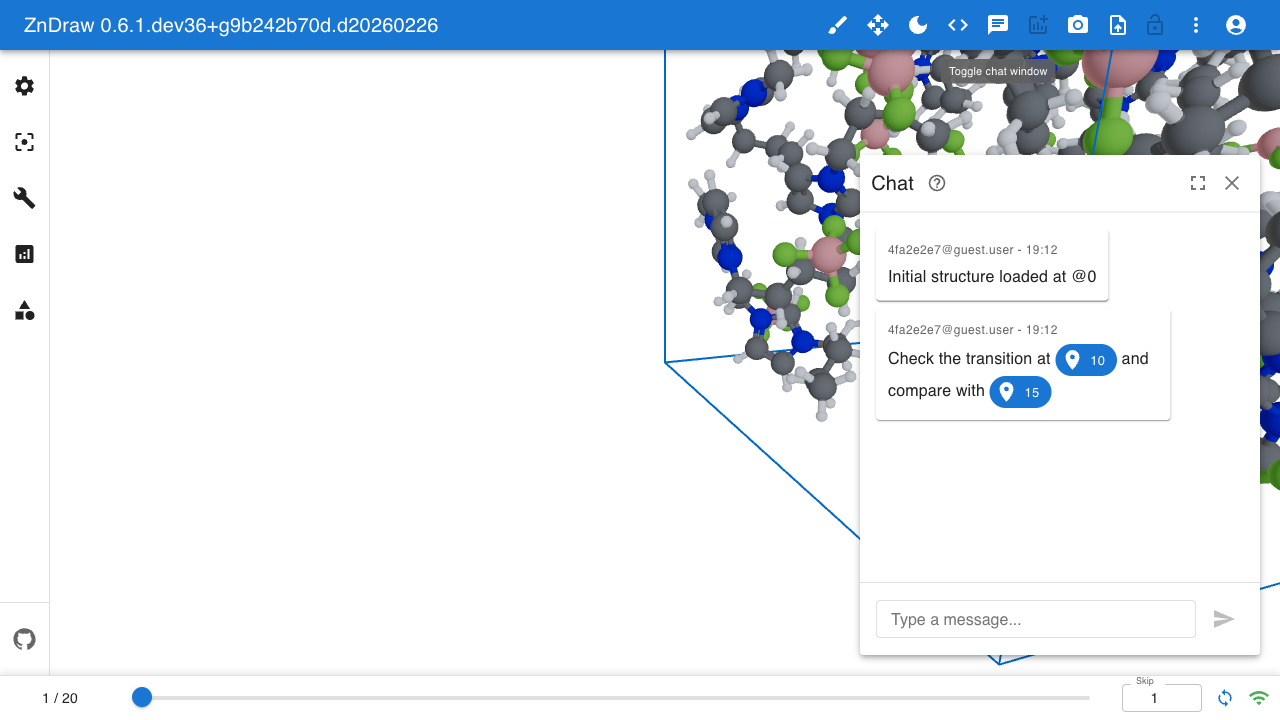
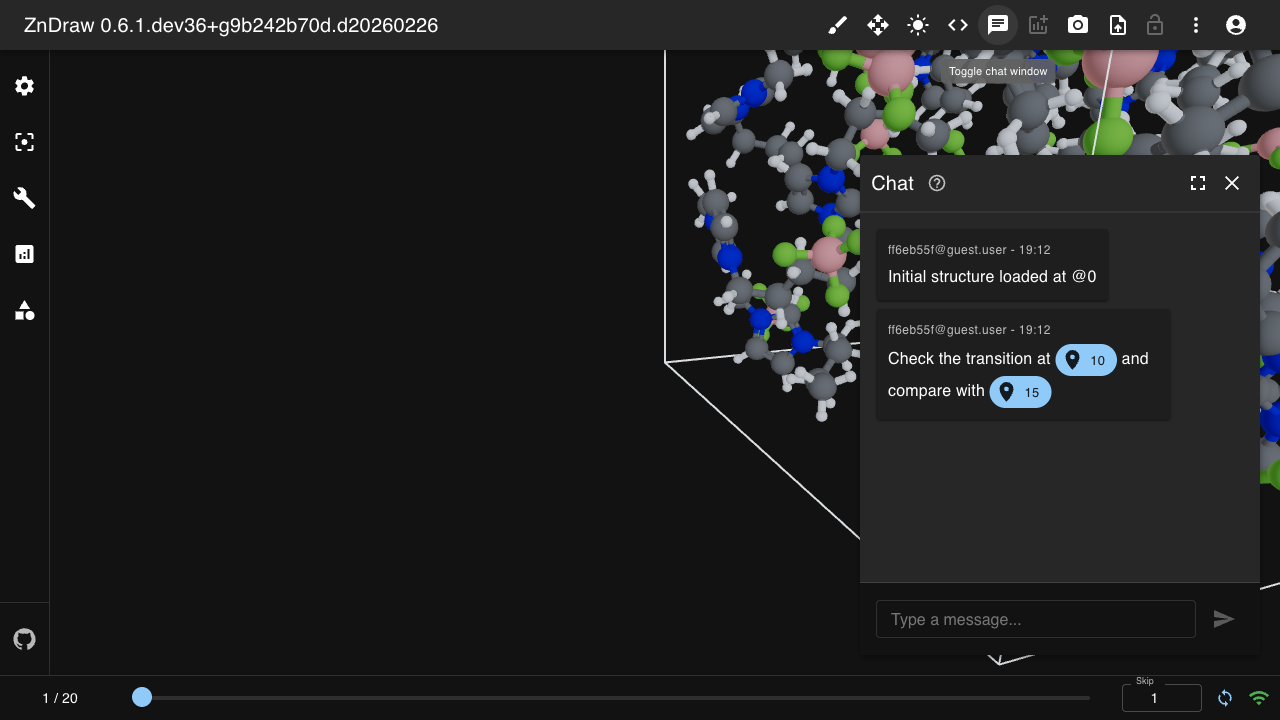
Reference frames in chat messages using @{frame} syntax. Frame references
become clickable chips that navigate to the referenced frame:
# Reference specific frames in messages
vis.log("Initial structure at @0")
vis.log("Compare @10 with @15 to see the transition")
Clicking a frame reference chip navigates directly to that frame.
Markdown & Code Blocks
Chat messages support full Markdown rendering including:
Text formatting:
**bold**,*italic*,~~strikethrough~~Lists: Ordered and unordered lists
Links:
[text](url)LaTeX math: Inline
$E = mc^2$or block$$\sum_{i=1}^n x_i$$Code blocks: Syntax-highlighted code with language specification
vis.log("""
## Results Summary

The simulation converged after **1000 steps**.

Energy: $E = -42.5$ eV

```python
for atom in atoms:
    print(atom.symbol)
```
""")
Progress Bars
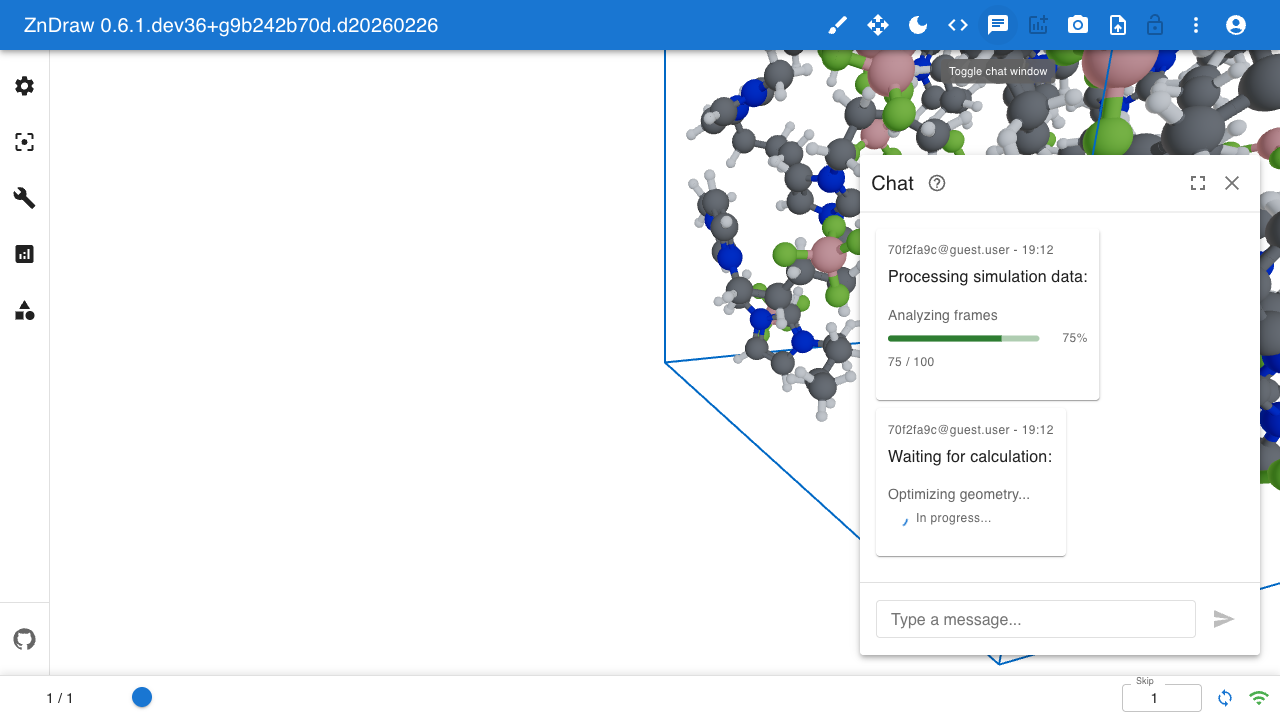
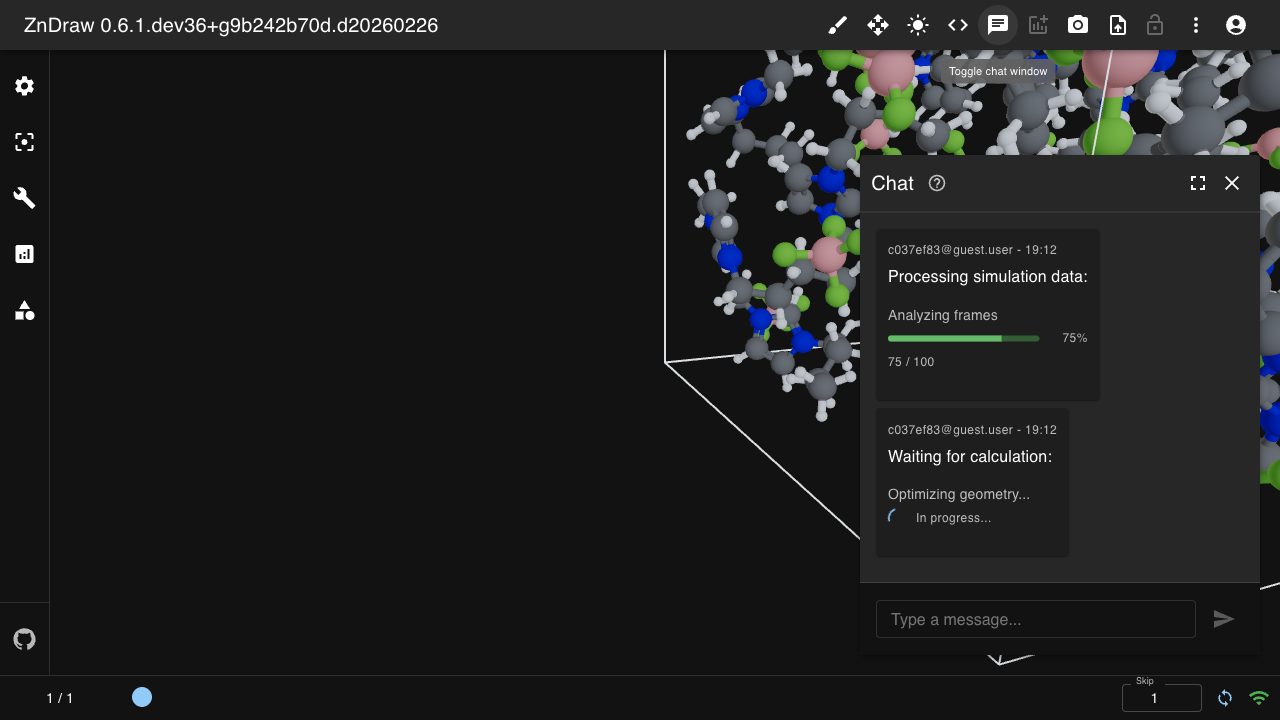
Display progress bars in chat using the progress code block syntax:
vis.log("""
```progress
description: Processing frames
value: 75
max: 100
color: success
```
""")
Parameters:
value: Current progress value. If omitted, shows an indeterminate spinner.min: Minimum value (default:0)max: Maximum value (default:100)description: Label text displayed above the progress barcolor: MUI color -primary,secondary,success,error,warning,info(default:primary)
The progress bar displays the percentage and the current value relative to max.
For long-running operations, consider using ZnDrawTqdm
instead, which provides real-time updates.
Molecule Structures
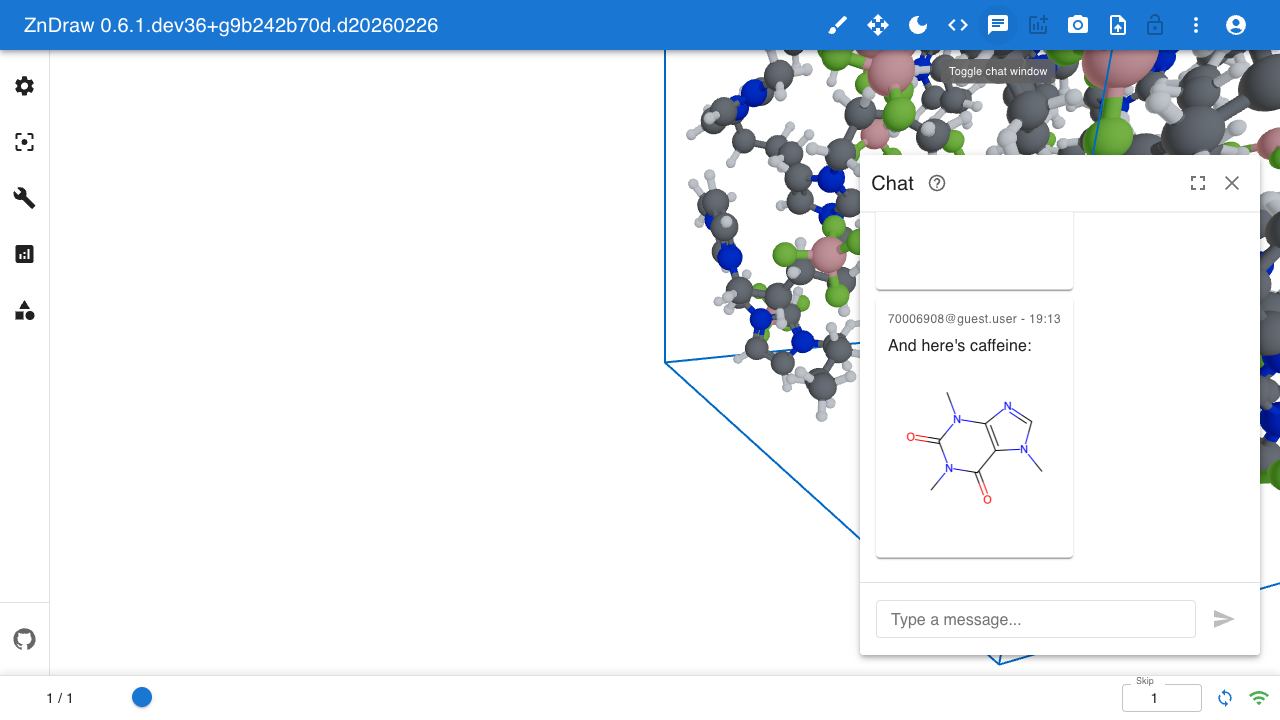
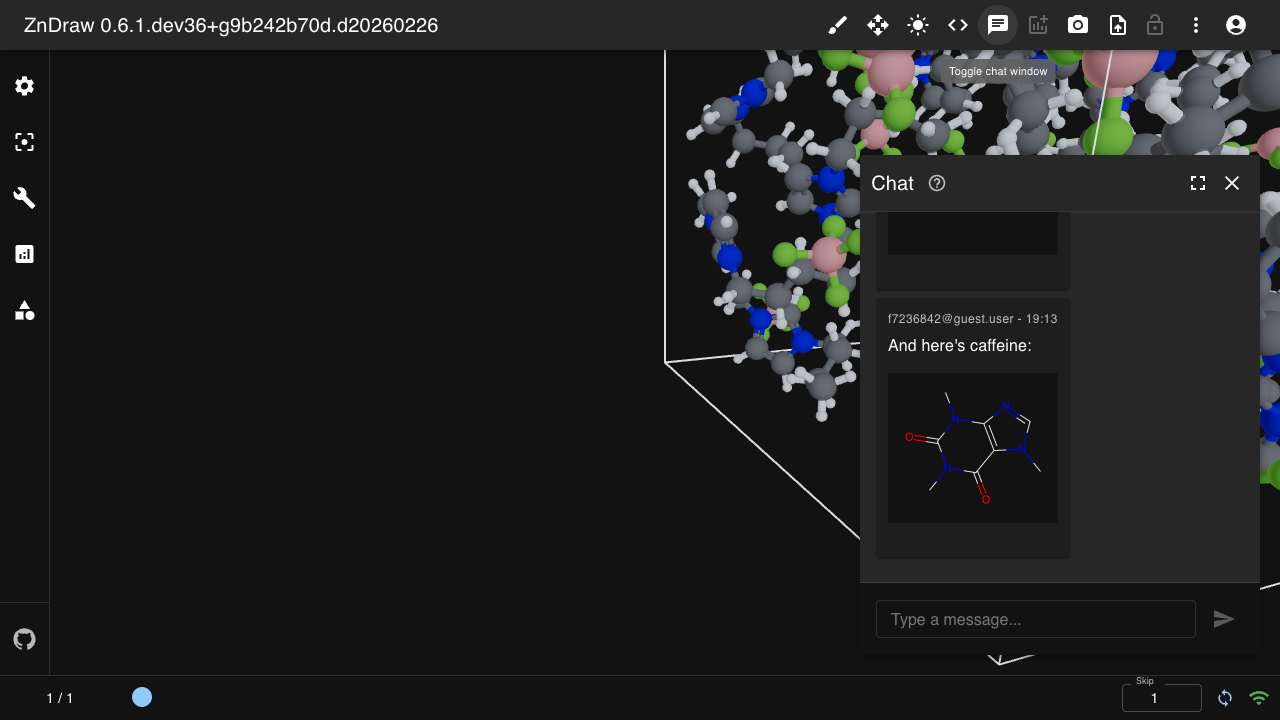
Display molecule structures in chat using SMILES notation with the smiles code block syntax:
vis.log("""
```smiles
CCO
```
""")
The SMILES string is rendered as a 2D molecule structure image using RDKit.
Property Inspector
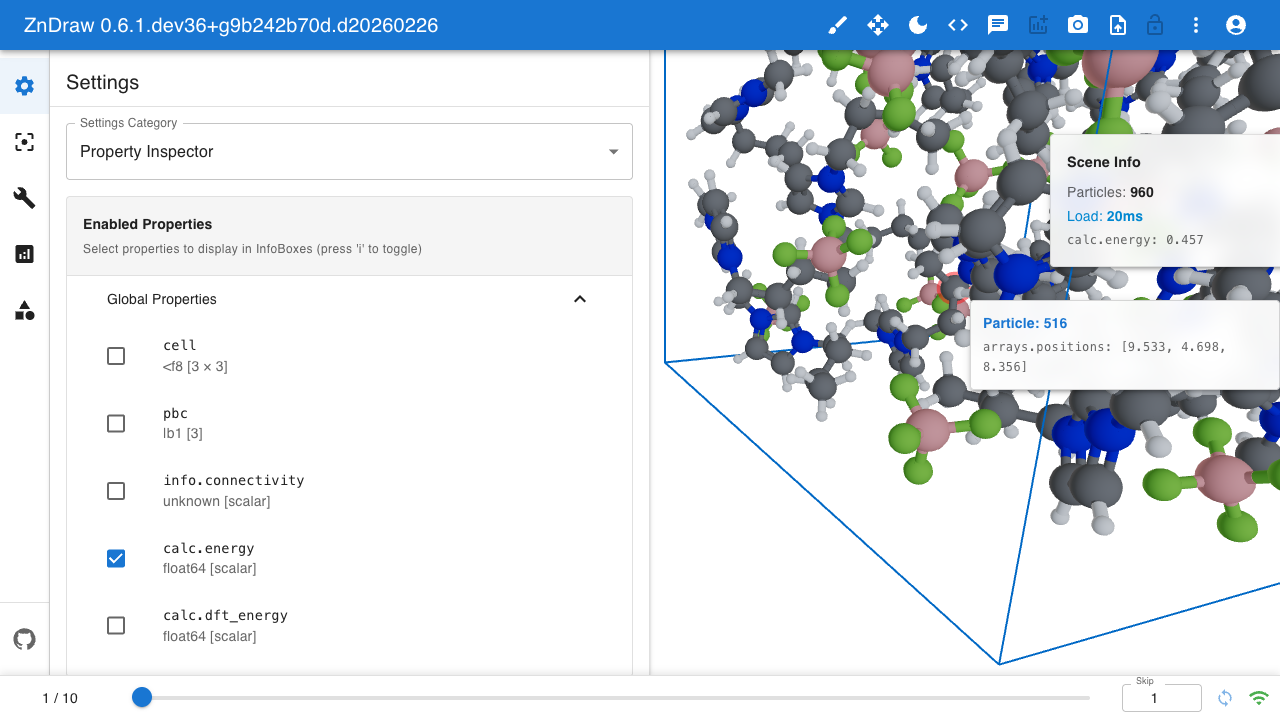
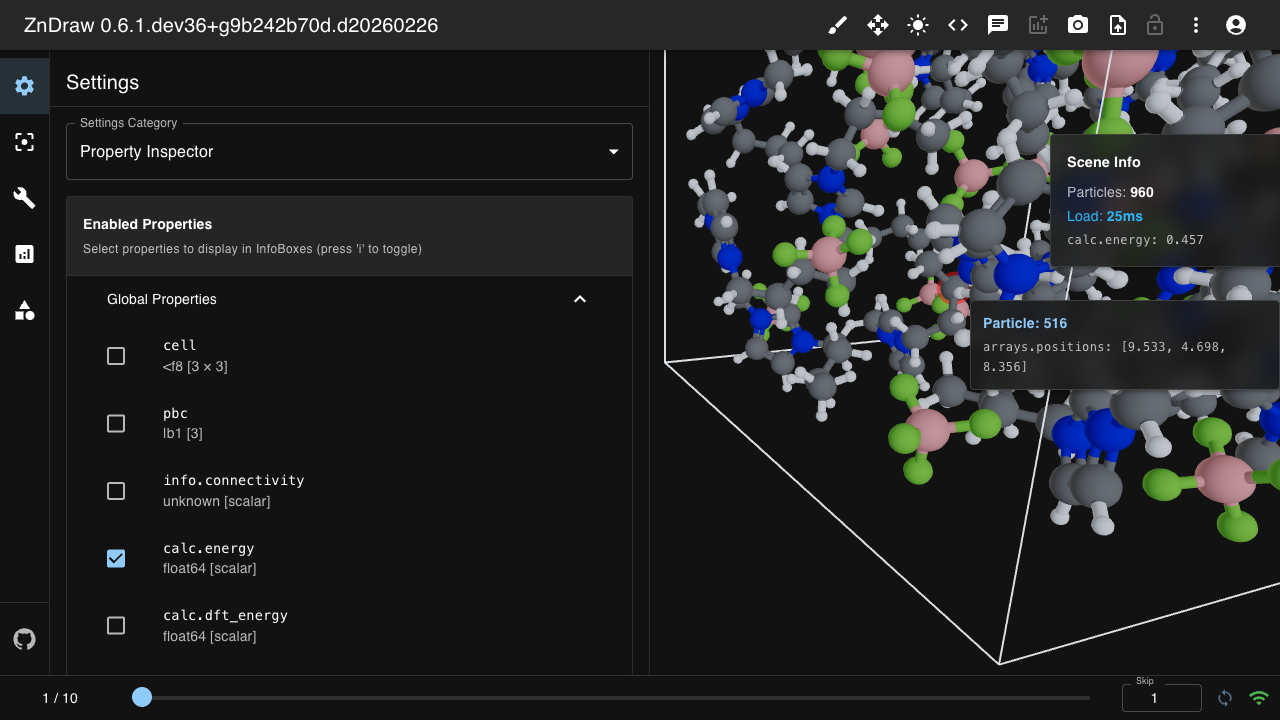
The property inspector displays frame properties in floating info boxes.
Press i to toggle visibility. Configure which properties to display
via settings:
# Enable properties in the inspector
vis.sessions["<sessionId>"].settings.property_inspector.enabled_properties = [
    "calc.energy",
    "calc.forces",
]
Two info boxes are available:
Scene Info (top-right): Displays global properties like
calc.energyHover Info (follows cursor): Shows per-particle properties when hovering over atoms
Properties are automatically categorized based on their shape:
Global: Scalar values or arrays not matching particle count
Per-particle: Arrays with first dimension equal to particle count
Browser Sessions
Access connected browser windows via vis.sessions. Each frontend session
has its own camera and rendering settings:
# List all connected browser sessions
for session_id in vis.sessions:
    print(session_id)

# Access a specific session
session = vis.sessions["abc-123"]

# Get/set camera for that browser window
cam = session.camera
print(cam.position, cam.target)

# Update camera position
from zndraw.geometries import Camera
session.camera = Camera(position=(10, 5, 10), target=(0, 0, 0), fov=60)

# Access session settings
settings = session.settings
settings.studio_lighting.key_light = 1.5  # adjust settings
Note
Only frontend browser windows appear in vis.sessions.
Python API clients do not create entries here.
Progress Tracking
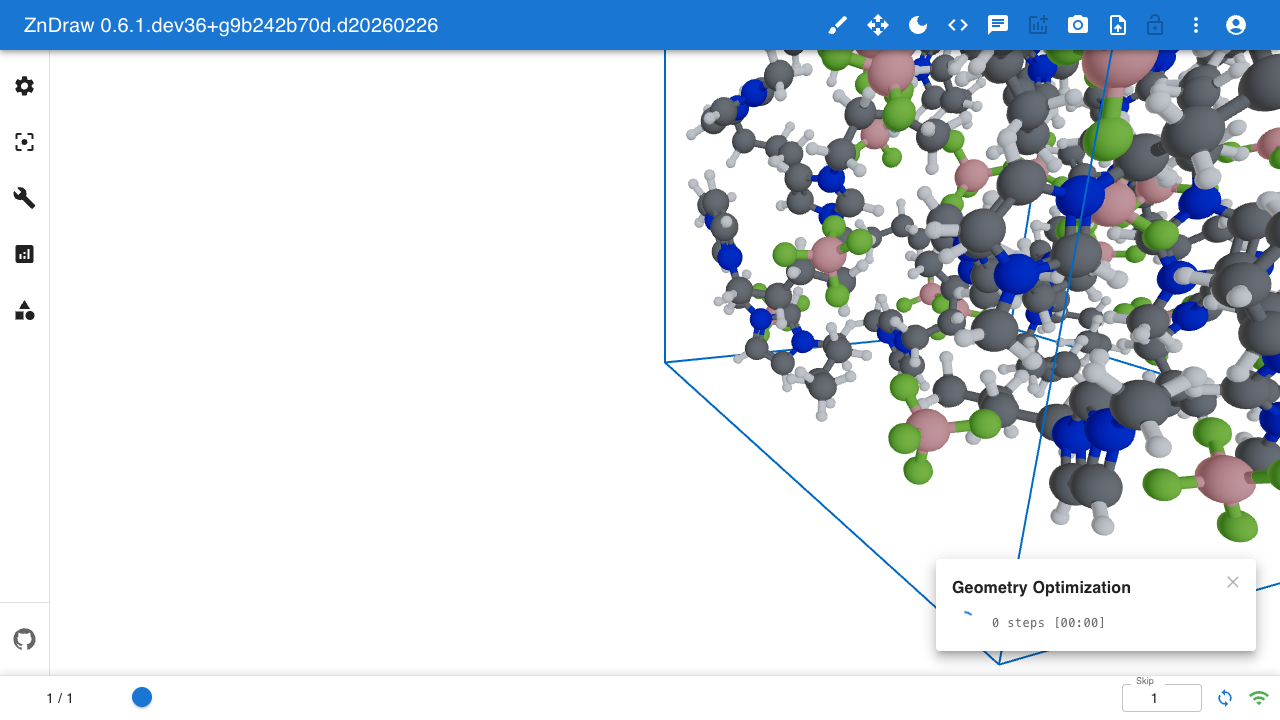
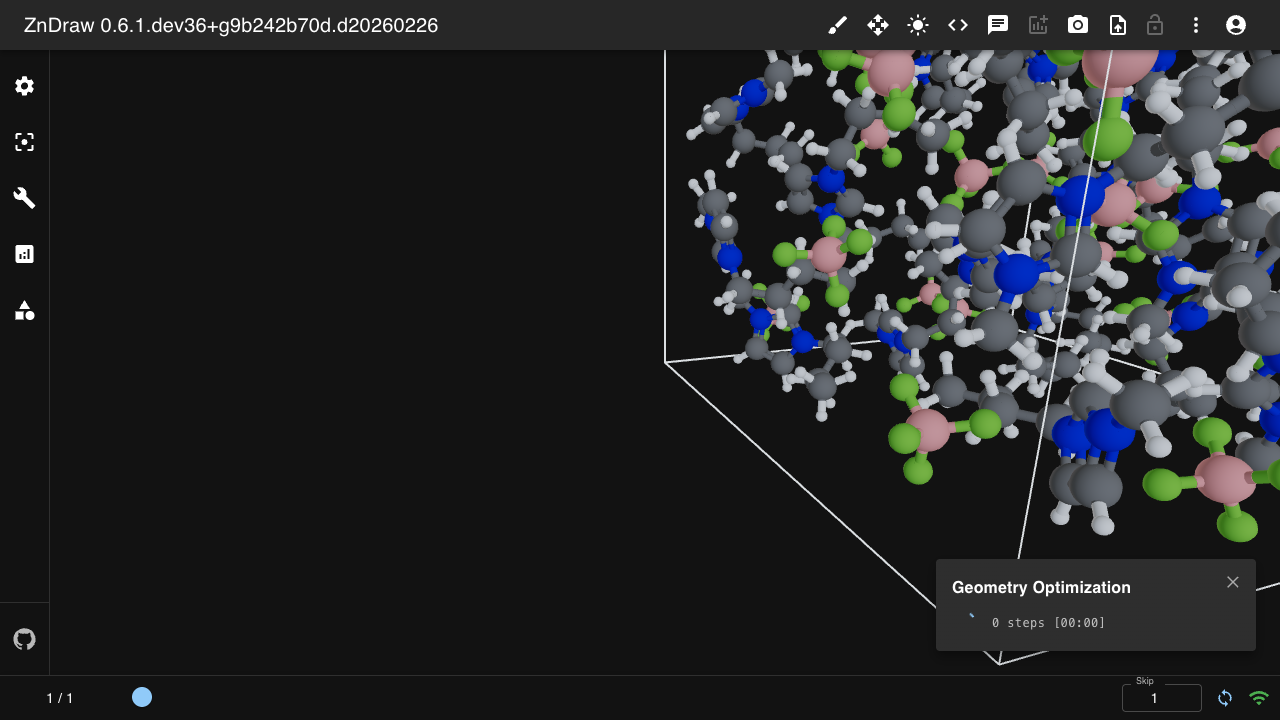
Track long-running operations with ZnDrawTqdm:
from zndraw import ZnDrawTqdm

for item in ZnDrawTqdm(items, vis=vis, description="Processing data"):
    process(item)
The progress bar appears in the UI with the current message and completion percentage.
Lock Mechanism
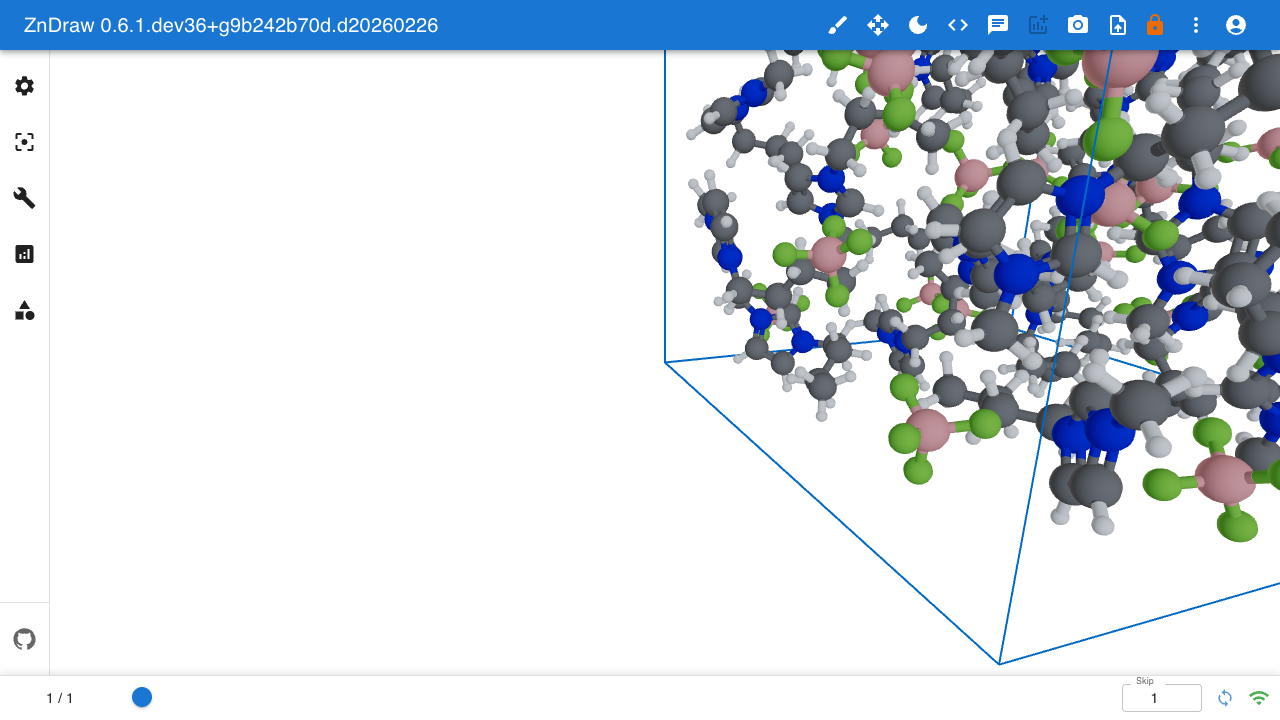
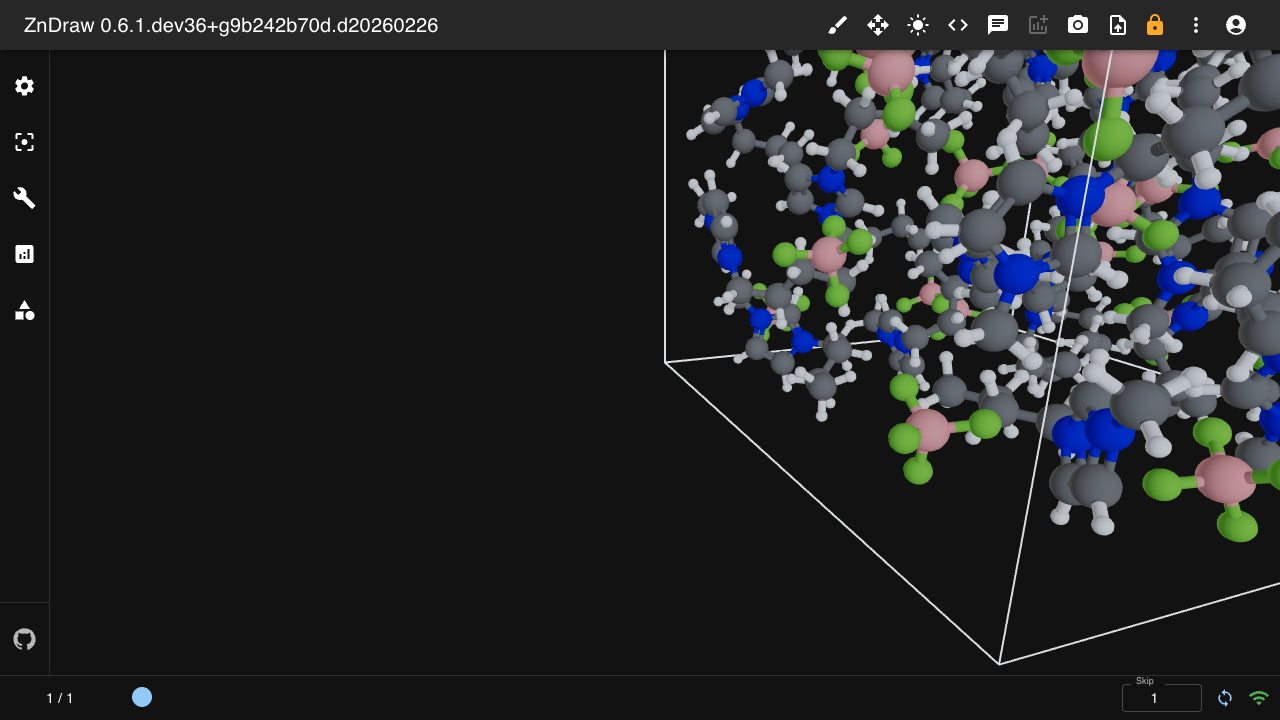
Use vis.get_lock() for safe batch operations that prevent concurrent modifications:
# Lock the room during bulk operations
with vis.get_lock(msg="Uploading trajectory..."):
    for atoms in trajectory:
        vis.append(atoms)

# Lock specific targets for fine-grained control
with vis.get_lock(target="step"):
    vis.step = 42
While a lock is held, other clients see a locked indicator (shown above) and cannot modify the locked resources. The lock message is displayed in the UI so users know what operation is in progress. This is useful when uploading large trajectories or performing multi-step operations that should not be interrupted.
Custom Extensions
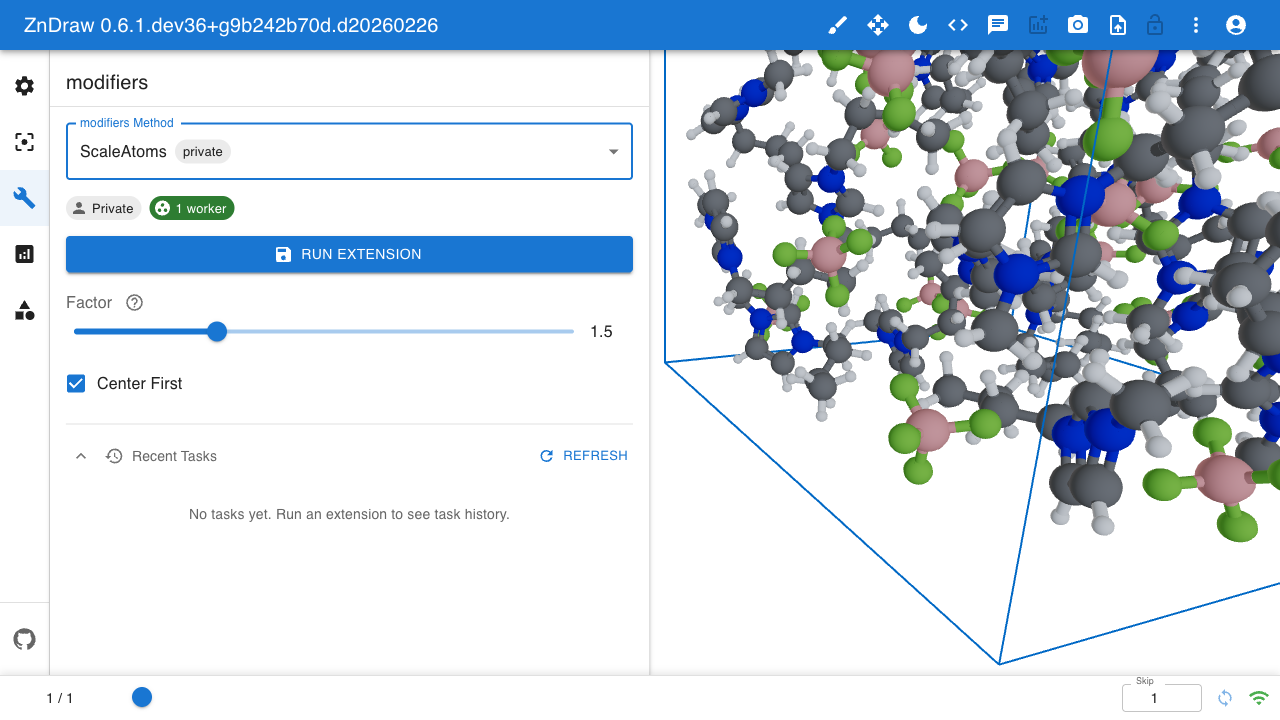
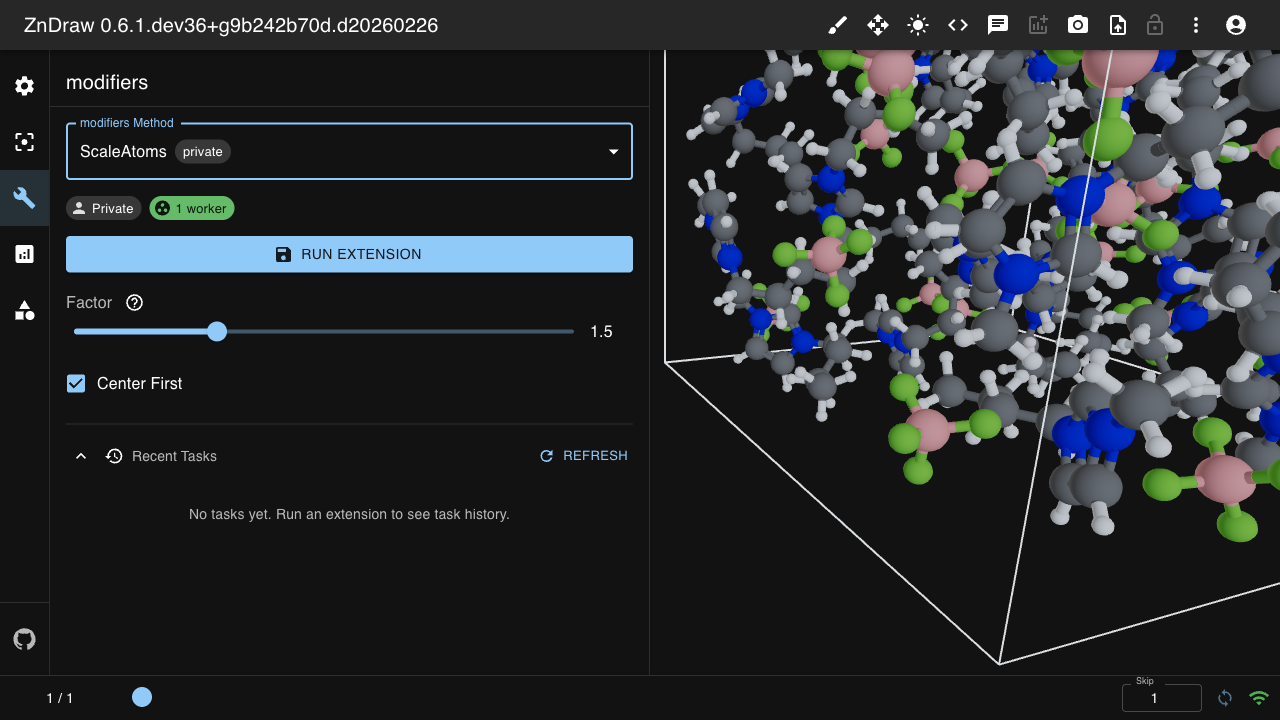
ZnDraw supports custom extensions for modifiers, selections, and analysis.
Subclass Extension, set a category, and implement run():
from pydantic import Field
from zndraw import ZnDraw, Extension, Category

class ScaleAtoms(Extension):
    """Scale atom positions by a factor."""

    category = Category.MODIFIER  # or SELECTION or ANALYSIS
    factor: float = Field(
        1.5, ge=0.1, le=5.0,
        description="Scale factor",
        json_schema_extra={"format": "range"},
    )
    center_first: bool = Field(
        True,
        description="Center atoms before scaling",
    )

    def run(self, vis, **kwargs):
        atoms = vis.atoms.copy()
        if self.center_first:
            atoms.positions -= atoms.get_center_of_mass()
        atoms.positions *= self.factor
        vis.append(atoms)
        vis.step = len(vis) - 1
Extension Categories
Extensions are categorized by their purpose:
Category.MODIFIER: Modify atomic structures (e.g., delete, rotate, translate)Category.SELECTION: Select atoms (e.g., by type, neighbors, random)Category.ANALYSIS: Analyze data and create plots (e.g., properties, correlations)
Registering Extensions
Use register_job() to make an extension available in the UI.
Room-scoped (default):
vis = ZnDraw()
vis.register_job(ScaleAtoms)  # visible only in vis.room
vis.wait()
Global (admin-only):
Global extensions are visible in all rooms. Only admin users can register them —
non-admin users receive a PermissionError (HTTP 403).
from zndraw import GLOBAL_ROOM

vis = ZnDraw(url="http://localhost:4567", user="admin@example.com", password="...")
vis.register_job(ScaleAtoms, room=GLOBAL_ROOM)  # visible in all rooms
vis.wait()
Note
The @global and @internal sigils are still supported for system-scoped jobs.
They are not composed addresses — they are reserved system rooms.
Explicit room:
vis.register_job(ScaleAtoms, room="123e4567-e89b-12d3-a456-426614174000/my-room")
Passing Runtime State (run_kwargs)
Heavy objects that should live in worker memory (e.g. ML models, database
connections) can be passed at registration time via run_kwargs.
These kwargs are forwarded to extension.run() on every task execution
without being serialized:
import torch

model = torch.load("model.pt")

class Predict(Extension):
    category = Category.MODIFIER
    temperature: float = 1.0

    def run(self, vis, *, model=None, **kwargs):
        atoms = vis[vis.step]
        result = model(atoms, self.temperature)
        vis.append(result)
        vis.step = len(vis) - 1

vis = ZnDraw()
vis.register_job(Predict, run_kwargs={"model": model})
vis.wait()
The run_kwargs dict is stored in the worker process and never sent to the
server. This means values can be non-serializable (torch models, open file
handles, etc.). Each invocation of run() receives the same object
references.
Extension Scopes
Every extension is prefixed by its scope:
The full name of an extension follows the pattern
<scope>:<category>:<name>, e.g. @global:modifiers:ScaleAtoms.
Running Extensions
Submit an extension for execution via vis.run(). This returns a
TaskHandle that can be polled or awaited:
# Run a built-in extension
task = vis.run("@internal:modifiers:Delete")
task.wait(timeout=30)

# Run with parameters
task = vis.run("@global:modifiers:ScaleAtoms", factor=2.0, center_first=True)
task.wait()

# Check status
print(task.status)  # "completed" or "failed"
Discover available extensions with vis.extensions:
# List all extension names
list(vis.extensions)

# Get schema for a specific extension
vis.extensions["@internal:modifiers:Delete"]
Worker Lifecycle
When you call register_job(), the client connects via Socket.IO and starts
a background worker that claims and executes tasks. Call vis.wait() to block
until the process is interrupted:
vis = ZnDraw()
vis.register_job(ExtensionA)
vis.register_job(ExtensionB)
vis.wait()  # blocks until Ctrl+C
The worker sends heartbeats to the server. On disconnect, all registered jobs are cleaned up automatically.
Providers
Providers are read-only data source handlers that let extensions access external resources (filesystems, databases, etc.) through the worker process.
Filesystem provider (convenience)
register_fs() registers an fsspec
filesystem and the built-in LoadFile extension in one call:
import fsspec

vis = ZnDraw()
vis.register_fs(fsspec.filesystem("file"), name="local")
vis.wait()
Users can then load files from the UI via the LoadFile modifier.
Custom providers
Subclass Provider, implement read(handler), and register with
register_provider():
from zndraw_joblib import Provider

class DBLookup(Provider):
    category = "database"
    query: str = ""

    def read(self, handler):
        # handler is whatever you pass to register_provider()
        return handler.execute(self.query).fetchall()

vis.register_provider(DBLookup, name="my-db", handler=db_connection)
Extensions access providers via the providers kwarg passed to run():
class MyExtension(Extension):
    category = Category.MODIFIER

    def run(self, vis, **kwargs):
        providers = kwargs.get("providers") or {}
        db = providers.get(f"{vis.room}:database:my-db")
        rows = db.execute("SELECT ...").fetchall()
        ...
Provider names follow the pattern {room}:{category}:{name}.
Schema Customization
Use json_schema_extra and Field options to customize how fields appear in the UI:
Slider Input
factor: float = Field(
    1.0, ge=0.0, le=10.0,
    json_schema_extra={"format": "range"},
)
Dynamic Dropdowns
Populate dropdowns at runtime from available data:
# Dropdown from geometry names (filtered to Curves)
curve: str = Field(
    "curve",
    json_schema_extra={
        "x-custom-type": "dynamic-enum",
        "x-features": ["dynamic-geometries"],
        "x-geometry-filter": "Curve",
    },
)

# Dropdown from atom/frame properties
property: str = Field(
    ...,
    json_schema_extra={
        "x-custom-type": "dynamic-enum",
        "x-features": ["dynamic-atom-props"],
    },
)
SMILES Input with Ketcher Editor
smiles: str = Field(
    ...,
    json_schema_extra={"x-custom-type": "smiles"},
)
Available Options
Option |
Description |
|---|---|
|
Render as slider (requires ge/le bounds) |
|
SMILES input with Ketcher editor button |
|
Runtime-populated dropdown |
|
Populate from geometry names |
|
Populate from atom/frame properties |
|
Filter geometries by type |
Custom Filesystems
Register any fsspec-compatible filesystem to browse and load files from the UI:
from fsspec.implementations.dirfs import DirFileSystem

vis.register_filesystem(DirFileSystem(path="."), "local")
All fsspec-compatible filesystems are supported, including S3, GCS, Azure, HDFS, and more.