Keyboard Shortcuts
ZnDraw provides keyboard shortcuts for the navigation and interaction. Shortcuts are organized by interaction mode.
Note
Keyboard shortcuts are disabled when typing in input fields (text boxes, search, etc.).
Global Shortcuts
These shortcuts work in any mode:
Shortcut |
Action |
|---|---|
|
Navigate to previous / next frame |
|
Jump to previous / next bookmark |
|
Toggle playback |
|
Add bookmark to current frame |
|
Center camera on selection (or all particles) |
|
Rotate camera 15° around view axis |
|
Rotate camera 45° around view axis |
|
Rotate camera in opposite direction |
|
Toggle info boxes (property inspector) |
View Mode Shortcuts
These shortcuts are available in the default view mode:
Shortcut |
Action |
|---|---|
|
Select all particles |
|
Enter drawing mode |
|
Enter editing mode |
Drawing Mode
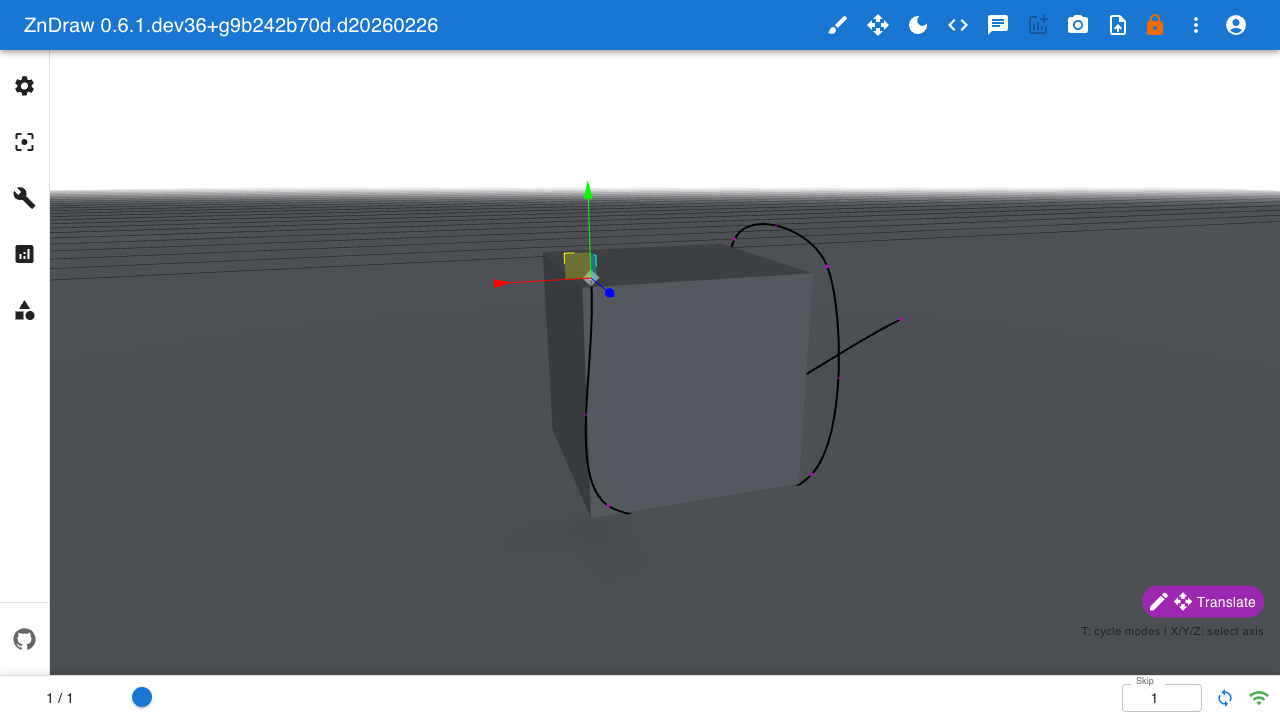
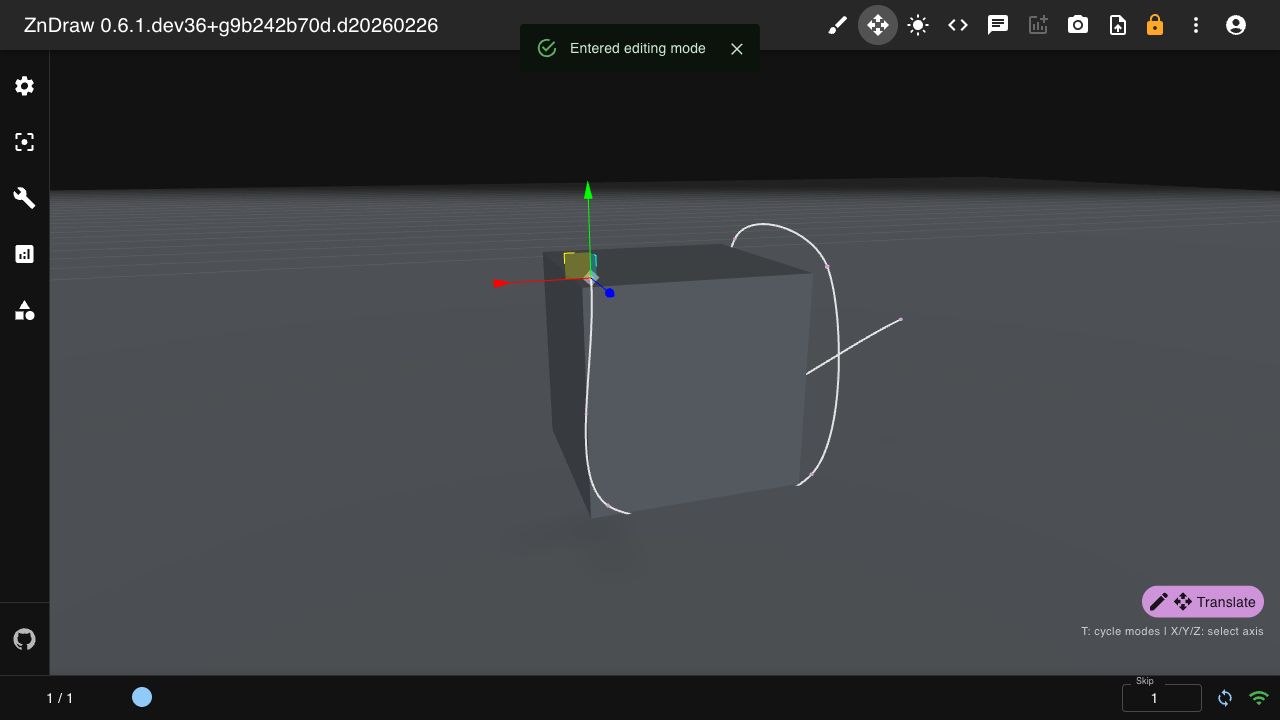
Drawing mode allows interactive curve creation. Press X to toggle.
Shortcut |
Action |
|---|---|
|
Exit drawing mode (return to view) |
|
Add point to active curve |
How Drawing Mode Works:
Press
Xto enter drawing modeA drawing marker appears at your cursor position
Click to add control points to the active curve
The marker turns red when over an invalid position
Press
Xagain to exit and return to view mode
Note
Drawing mode only works with Curve geometries that have static positions. The room is temporarily locked while drawing to prevent conflicts.
Editing Mode
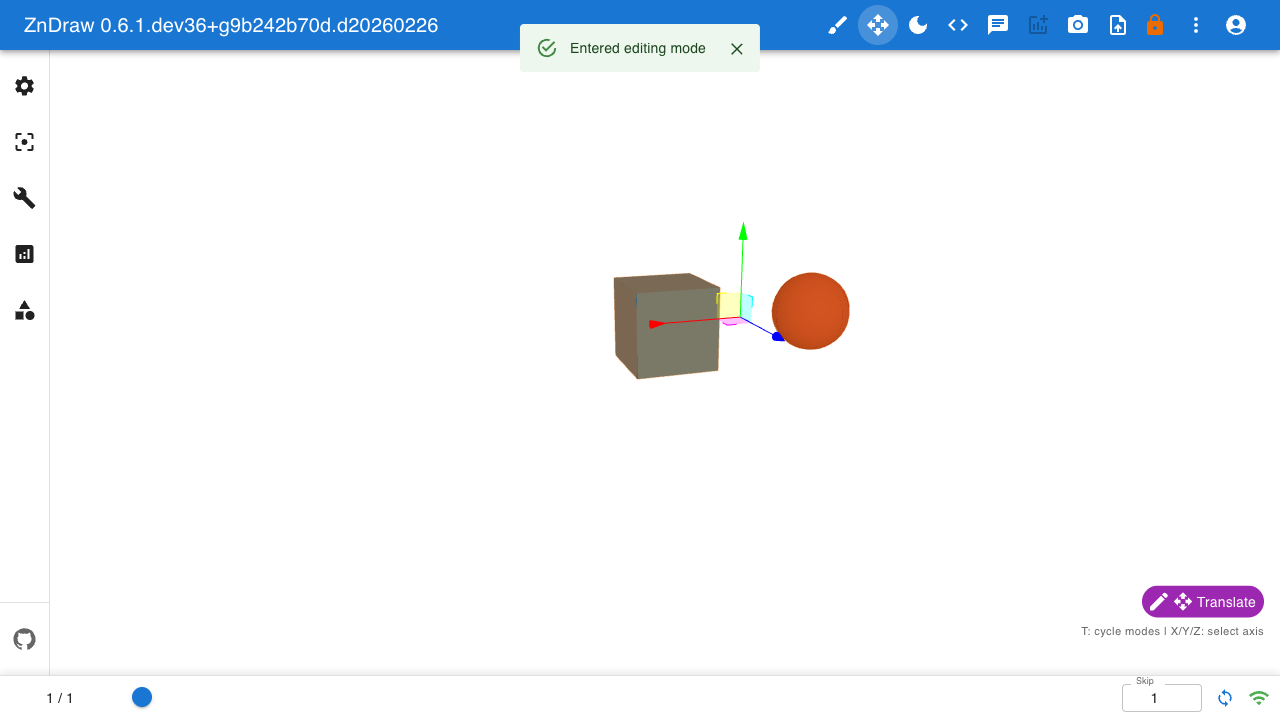
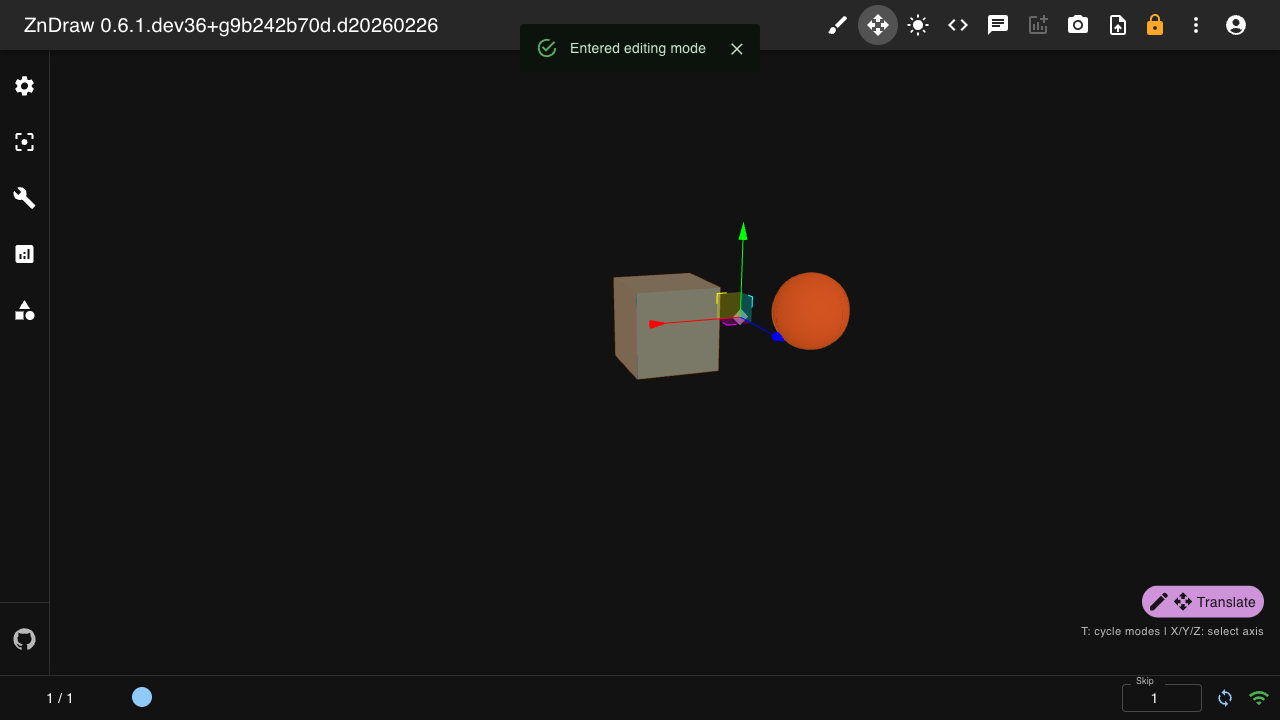
Editing mode allows interactive transformation of geometries. Press E to toggle.
Shortcut |
Action |
|---|---|
|
Exit editing mode (return to view) |
|
Cycle transform mode (translate → rotate → scale) |
|
Constrain to X axis |
|
Constrain to Y axis |
|
Constrain to Z axis |
|
Adjust transform sensitivity |
|
Larger sensitivity adjustment |
|
Save frame edits |
|
Delete selected curve markers |
How Editing Mode Works:
Press
Eto enter editing modeThe editing indicator appears showing the current transform mode
Select geometry instances by clicking on them
Use transform gizmo to translate, rotate, or scale
Press
Tto cycle between transform modesHold
X,Y, orZto constrain movement to a single axisPress
Sto save your changesPress
Eagain to exit and return to view mode
Axis Constraints:
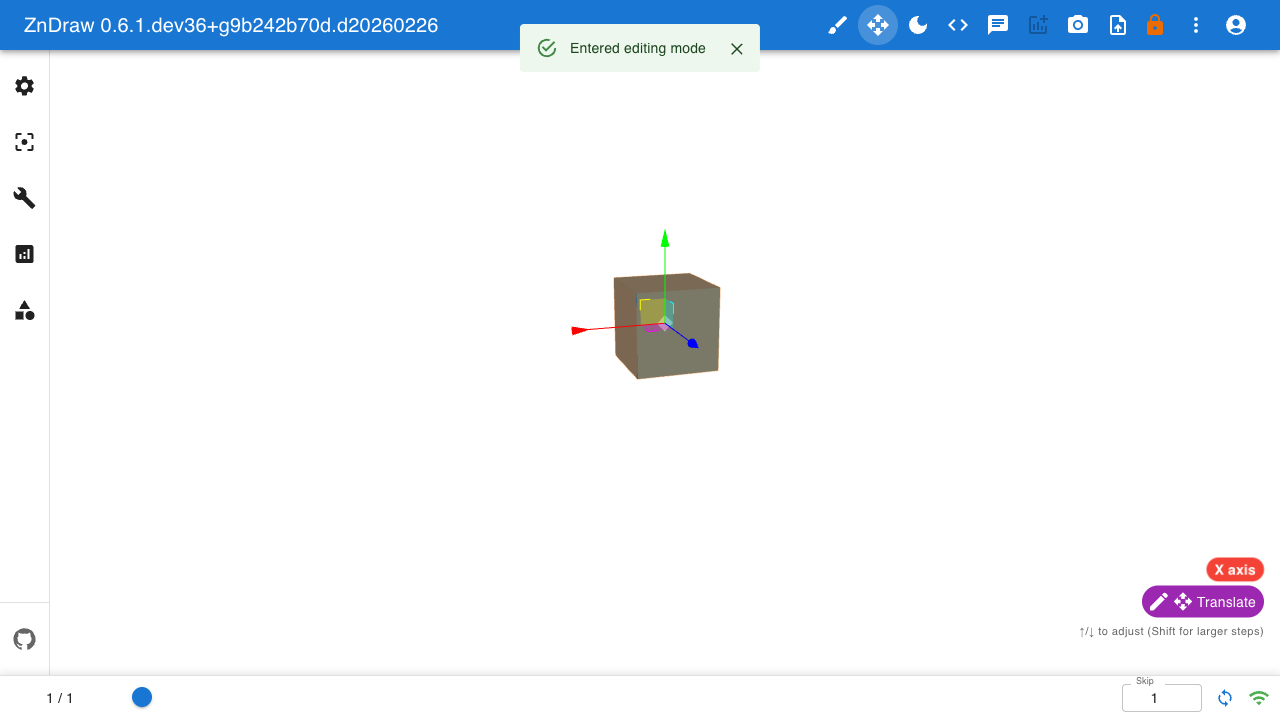
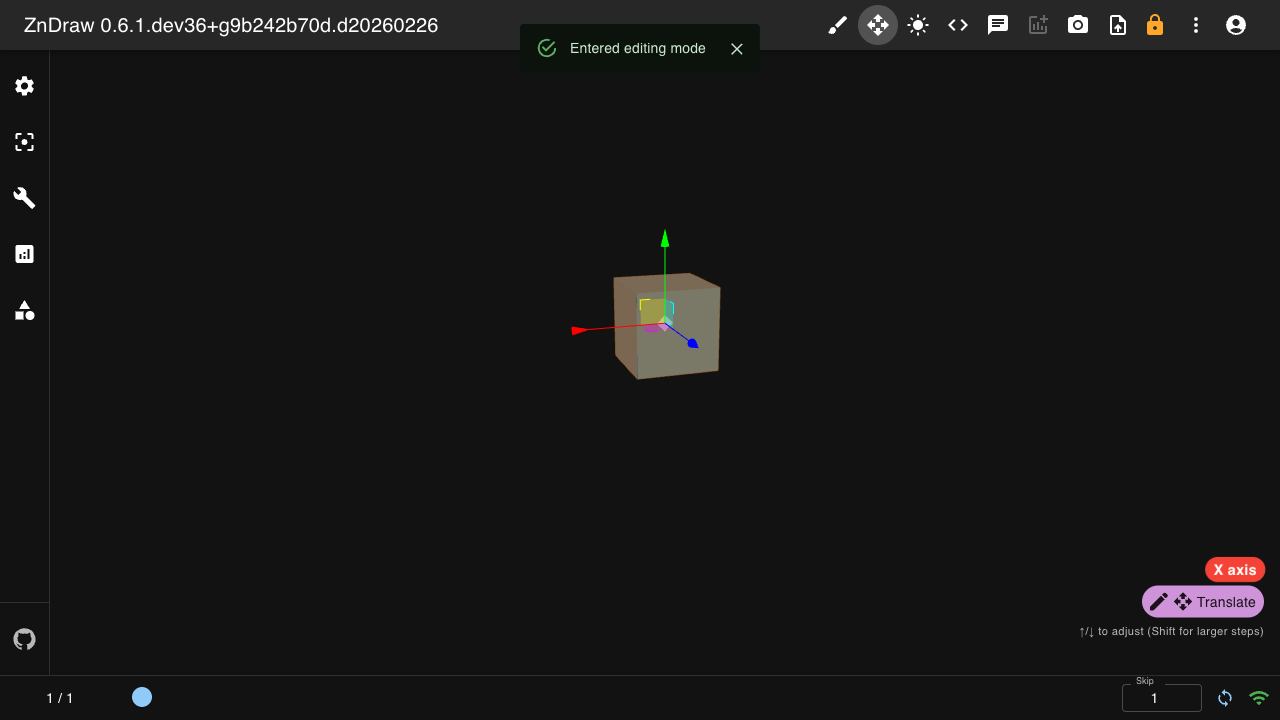
When holding an axis key, a colored chip appears indicating the active constraint:
Red chip: X axis constraint
Green chip: Y axis constraint
Blue chip: Z axis constraint
Virtual Markers (Curves):
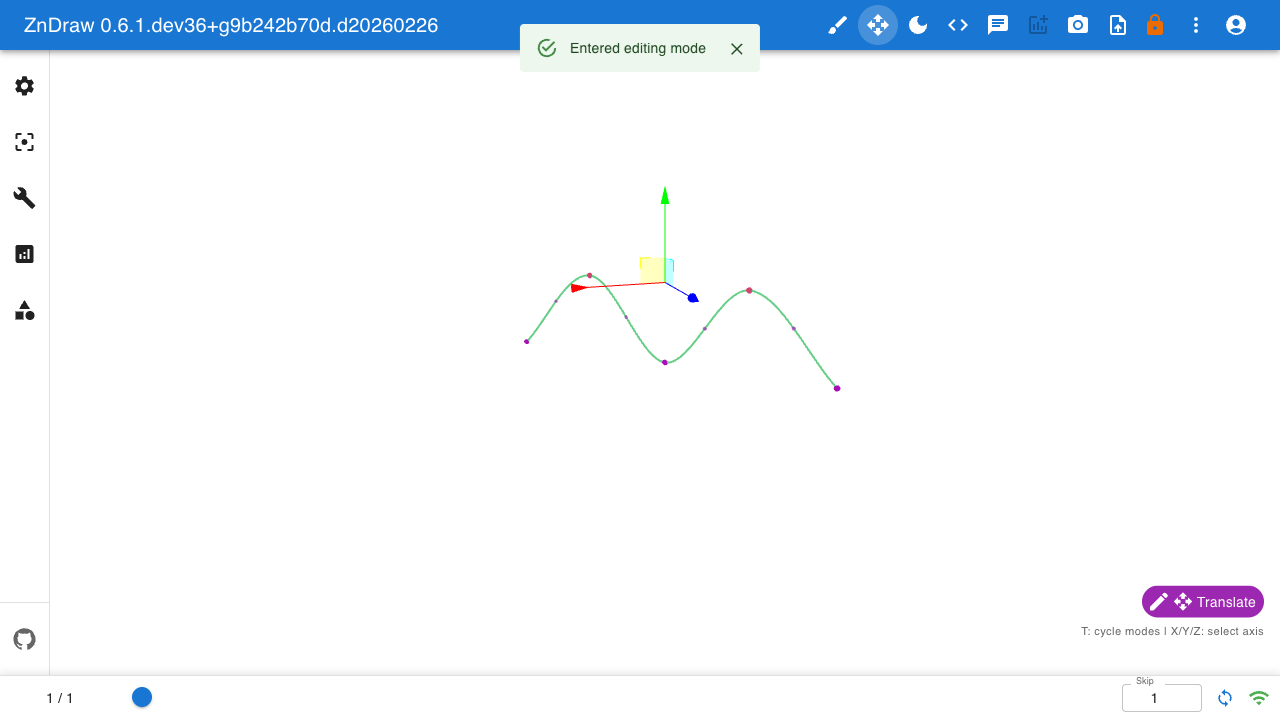
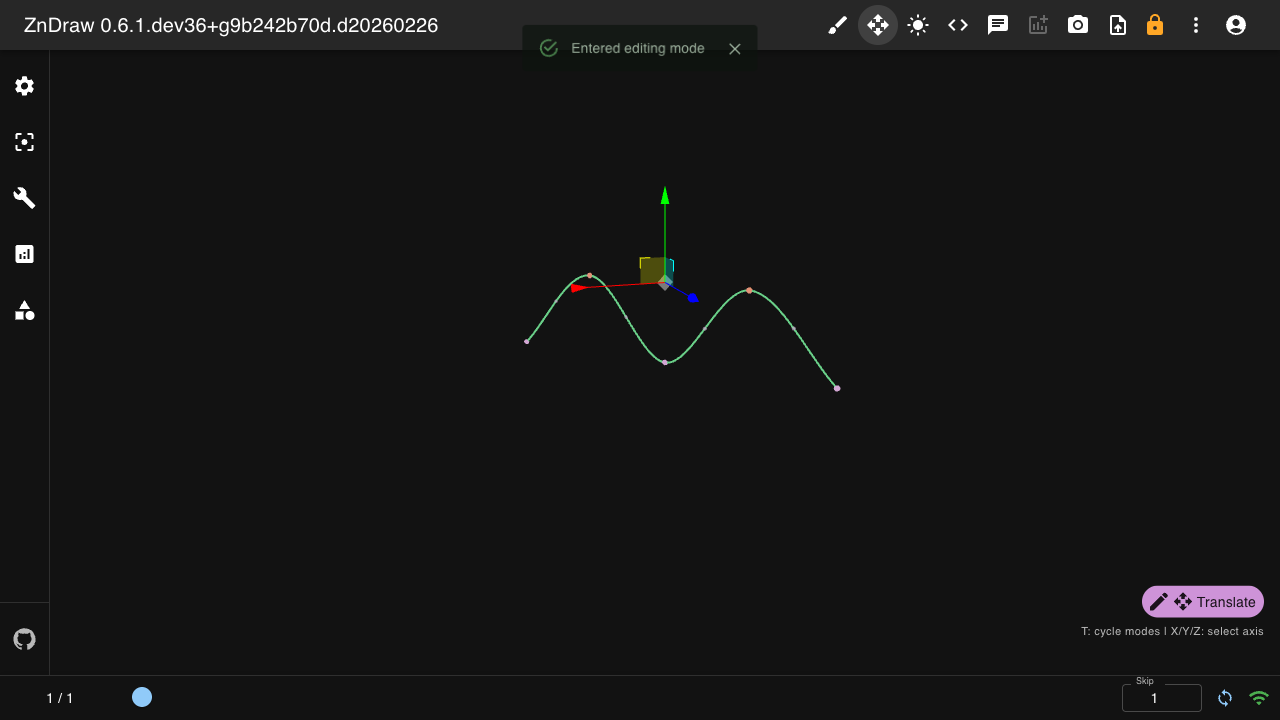
In editing mode, curves display virtual markers between control points. Click a virtual marker to insert a new control point at that position.